If you want to improve Discord audio quality, most of the gain comes from three places: your microphone and input level, Discord’s voice processing settings, and the server’s bitrate. Knowing how to improve Discord audio quality matters whether you’re gaming, hosting a community, or recording calls for content.
Here’s how to get clear, natural-sounding voice chat without overthinking it.
Start with the microphone
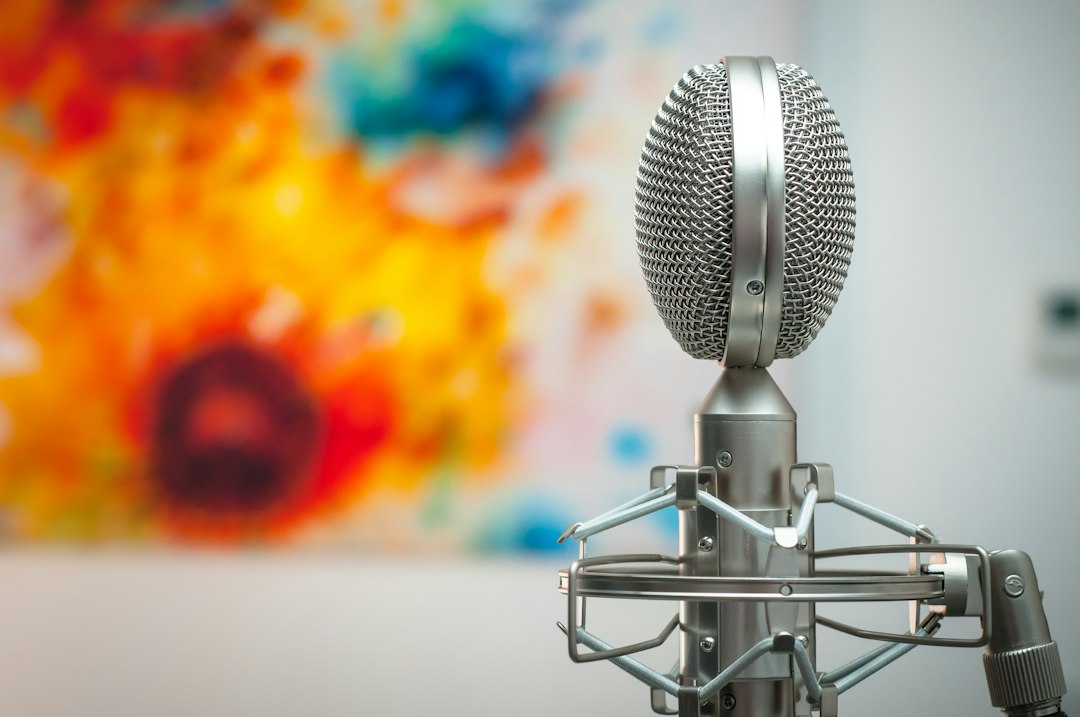
Discord can only transmit what your mic captures. A laptop or webcam mic picks up room noise and sounds thin; a dedicated mic is a huge upgrade. A dynamic mic used close to your mouth rejects background noise well, which is ideal for noisy gaming setups — see condenser vs dynamic microphones to choose. If you use a mic on an interface, our interface setup guide helps you get it recognised correctly.
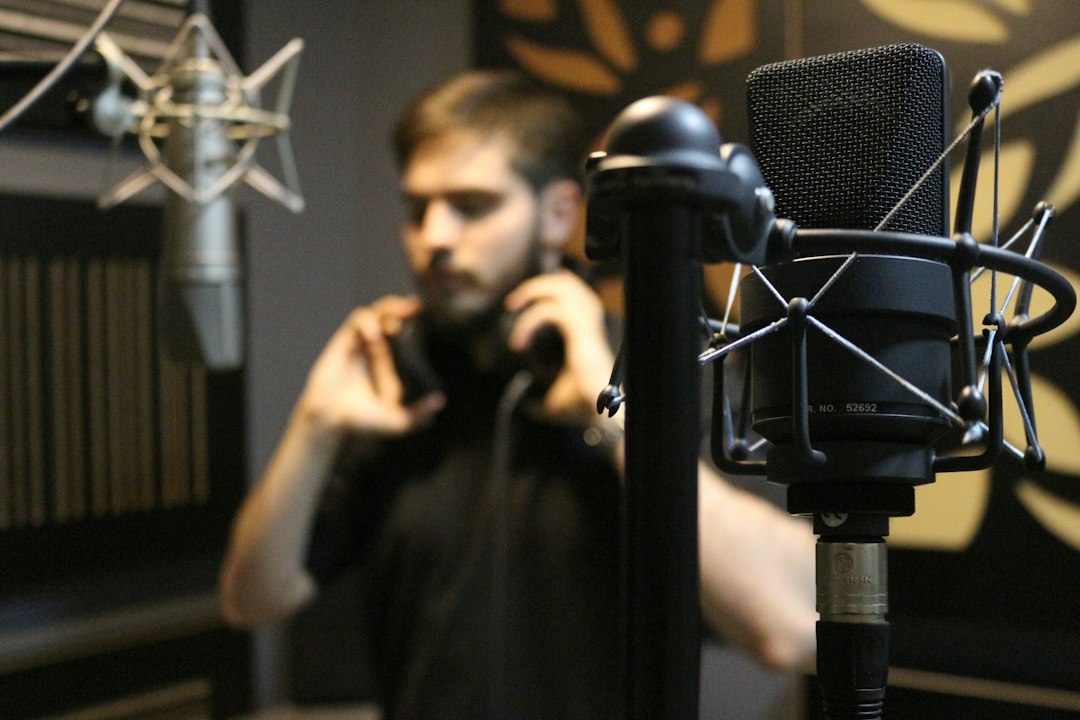
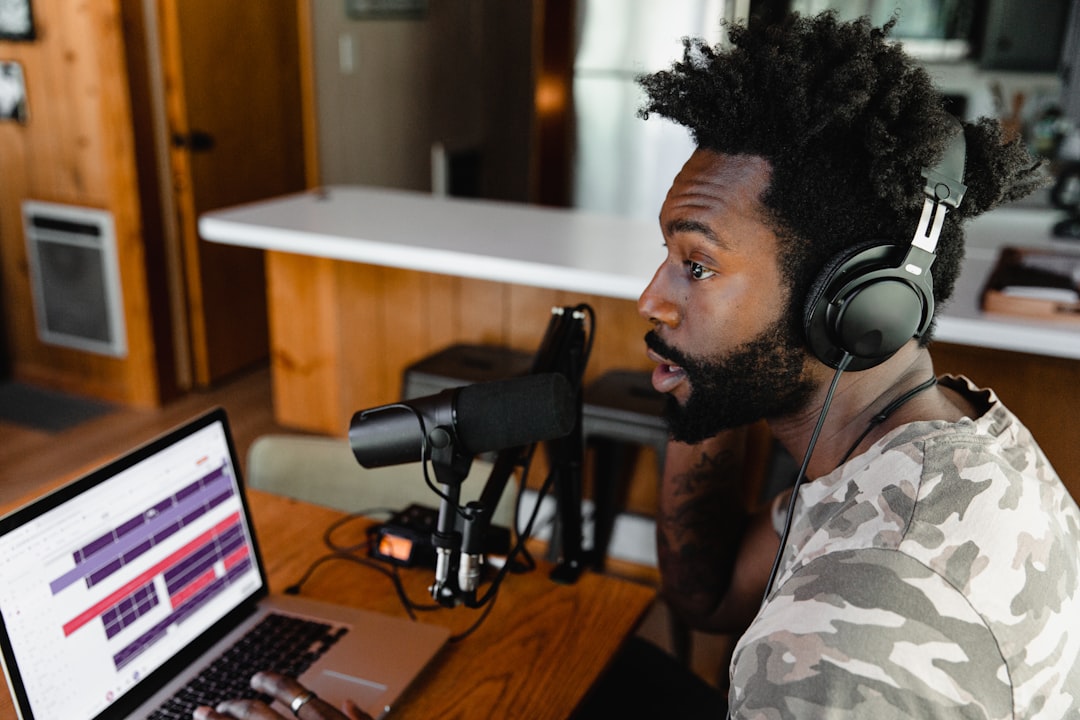
Mic technique matters as much as the mic itself. Speak across the capsule rather than straight into it, keep a consistent distance of roughly a hand-span, and use a pop filter or foam windscreen to soften plosives. Positioning the mic slightly off-axis and below or above your mouth reduces breath blasts while keeping your voice full and present — the same habits that help you sound better on a podcast mic.
Set your input level and device correctly
In Discord’s Voice & Video settings, select your actual microphone as the input device (not “Default”), and set the input volume so your voice is clear without clipping. Speaking too quietly forces others to crank their volume; too loud distorts. Aim for a healthy, consistent level — the same idea as gain staging in recording.
If your mic runs through an audio interface, set the gain on the interface first and leave Discord’s input slider near the top. Stacking too much digital gain on top of a weak signal amplifies hiss along with your voice. Get the level mostly right at the hardware, then make small adjustments in software.
Tune Discord’s voice processing
Discord includes automatic processing that can either help or hurt depending on your setup:
- Noise Suppression — strong suppression cleans up background noise but can make voices sound choppy or robotic. If you have a good mic in a quiet room, try lowering or disabling it for more natural sound.
- Echo Cancellation — keep it on if you use speakers; if you use headphones it’s often unnecessary.
- Automatic Gain Control — can cause volume pumping; many people with a dedicated mic prefer to turn it off and set levels manually.
- Input Mode — “Push to Talk” eliminates background noise transmission entirely; “Voice Activity” with a sensible sensitivity is more convenient.
Change one setting at a time and test with a friend or a recording so you can hear the difference.
Raise the server bitrate
Voice channels have a bitrate setting that controls audio quality. If you manage a server, increasing a voice channel’s bitrate improves clarity for everyone — higher tier servers (via boosts) allow higher bitrates. This is the single biggest server-side improvement, especially for music or detailed voice.
Bitrate is a trade-off, not a free upgrade. Higher settings need more upload bandwidth from every speaker, so members on weak or mobile connections may drop out or stutter if you push it too far. If people in your channel report crackling or robotic audio after a boost, ease the bitrate back down a step — a stable connection at a moderate bitrate sounds far better than a maxed-out one that keeps breaking up.
Use headphones and treat your space
Headphones stop your speaker audio from bleeding back into the mic, which kills echo — a closed-back pair from our best headphones for voice recording roundup works well here. Reducing room reflections also helps — even a few soft furnishings make a difference. For a noticeable jump, record or chat from a treated corner; our home booth guide shows simple ways to cut reflections.
Common mistakes that ruin Discord audio
Most poor-sounding voice chat comes down to a handful of avoidable errors. Watch out for these:
- Leaving the input device on “Default” — Discord may grab your webcam or laptop mic instead of your good one. Always pick the device by name.
- Stacking processing on a bad signal — noise suppression and gain control work harder, and sound worse, when the underlying capture is weak. Fix the mic and level first.
- Sitting too far from the mic — distance lets the room and background noise compete with your voice. Get close and consistent.
- Maxing every setting at once — changing several things together makes it impossible to tell what helped. Adjust one variable, then listen.
- Using speakers without echo cancellation — this feeds your output straight back into the mic. Headphones solve it instantly.
If you’re recording Discord calls
For podcasts or content, Discord’s compressed voice chat isn’t ideal as your final recording. Capture locally where possible, or treat Discord audio with care in post — our guide on removing background noise helps clean up rough recordings.
The cleanest approach is for each participant to record their own local track at the same time, then line the tracks up afterwards — the same method we cover for recording a remote podcast interview. Local recordings avoid Discord’s compression and one person’s connection issues won’t damage everyone’s audio. If that isn’t possible, record each speaker on a separate track where your tool allows it, so you can balance levels and clean up noise voice by voice rather than fighting a single mixed-down file.
Frequently asked questions
Why do I sound bad on Discord even with a good mic?
Usually it’s Discord’s processing or your input level. Aggressive noise suppression and automatic gain control can degrade a good mic’s sound. Set your input device and level manually, and ease off the processing if your room is quiet.
Does Discord reduce audio quality?
Discord compresses voice for low-latency chat, so it isn’t studio quality by design. Raising the voice channel bitrate improves it, but for content you should record locally rather than rely on the live Discord stream.
Should I turn off noise suppression in Discord?
If you have a dedicated mic in a quiet room, lowering or disabling noise suppression often sounds more natural. If you’re in a noisy environment or using a laptop mic, leaving it on is usually the better trade-off.
What bitrate should I set my Discord voice channel to?
For everyday voice chat a moderate bitrate is plenty and keeps things stable for everyone. Raise it when you want music or detailed audio to come through clearly, but back off if members on slower connections start to drop out or sound choppy.