
To record voiceover for YouTube videos that sounds clean and keeps viewers watching, you need three things: a quiet space, a decent microphone, and a simple recording-and-editing workflow. Good audio matters more than people expect — viewers will forgive rough video, but bad, echoey or noisy voiceover for YouTube videos makes them click away fast.
Here’s a straightforward way to get professional-sounding narration at home.
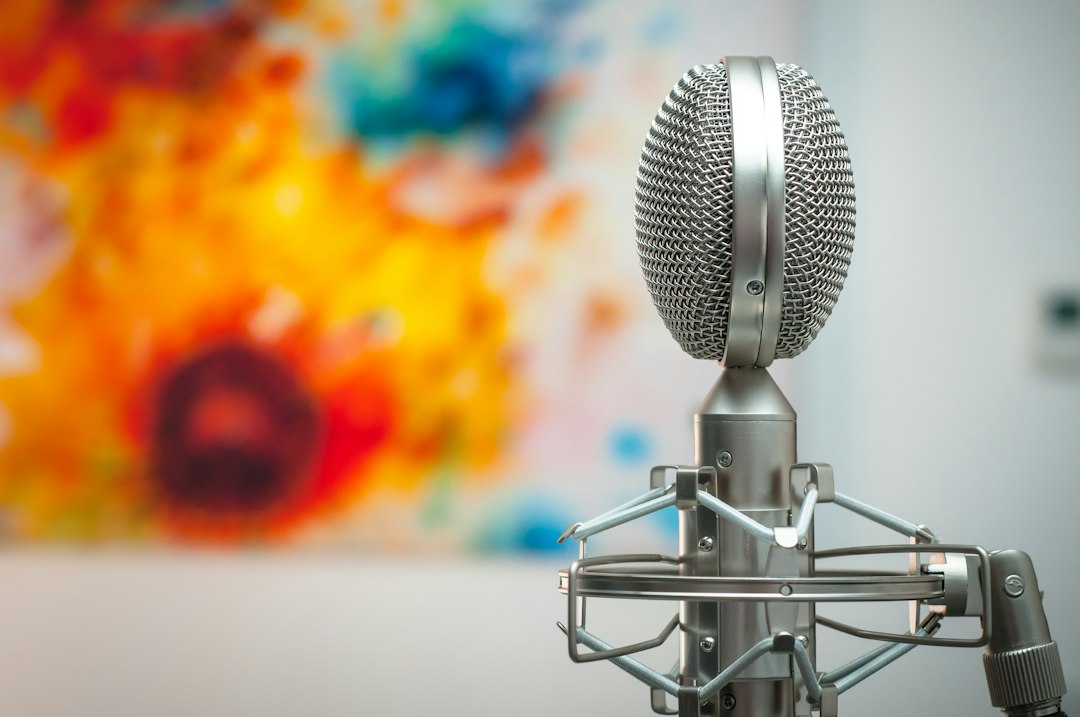
Choose the right microphone
Almost any modern mic beats a laptop’s built-in one. Your two main choices:
- USB mic — plug-and-play, great for getting started. See USB mic vs audio interface to decide.
- Mic + audio interface — more flexible and upgradeable. Our interface setup guide walks you through it.
For untreated rooms, a dynamic mic close to your mouth rejects more room sound; a condenser captures more detail but also more of the room. Our condenser vs dynamic comparison covers the trade-off. Once you’ve picked a mic, a few simple habits help you sound better on the microphone straight away.
If you want a mic that can handle voiceover today and on-camera or streaming work later, see our picks for the best microphones for content creators.
Try the free AI Audio Enhancer →
Tame the room before you record
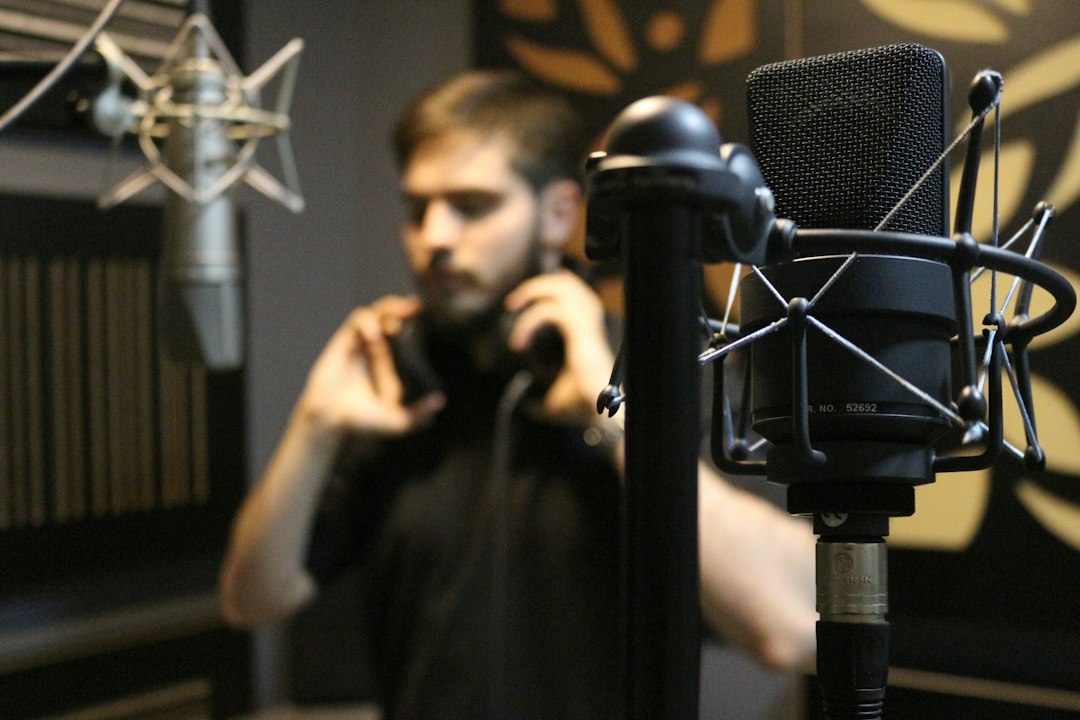
Echo and background noise are what make home voiceover sound amateur. You don’t need a studio — recording in a soft-furnished room, close to the mic, with some absorption nearby goes a long way. For consistent results, a small enclosure helps; see how to build a home voiceover booth. Turn off fans, close windows, and record when the house is quiet.
Get your levels and technique right
Set a healthy recording level with headroom so you never clip — our gain staging guide explains how. Stay a consistent distance from the mic (a fist’s width is a common starting point) and use a pop filter to control plosives. Warm up your voice first with our warm-up routine, and read with energy — narration that sounds bored loses viewers.
Record to picture or to script
You can either record narration first and edit video to it, or write a tight script and record in sections. Scripting keeps you concise and reduces rambling; if you’re new to it, the structure tips in our scriptwriting guide apply directly. Record in short takes so mistakes are easy to fix, and leave a beat of silence between sections for clean editing.
Edit and clean it up
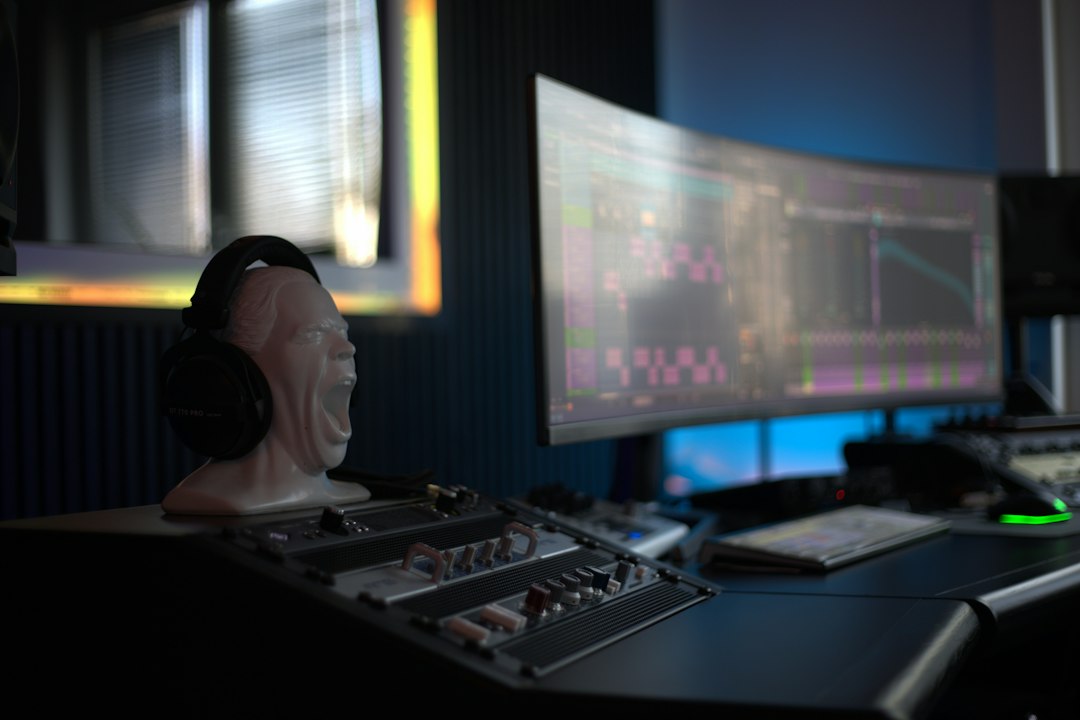
In your editor, cut mistakes and long pauses, remove obvious mouth clicks and breaths, and apply gentle EQ and compression so the narration sits forward and even. If you have background noise, light noise reduction helps — see how to remove background noise. Aim for consistent loudness so viewers don’t reach for the volume. Free DAWs handle all of this; browse the best free DAWs for beginners.
A simple step-by-step workflow
If you only remember one thing, remember this order. Working the same way every time is what turns good gear into consistently good results, and it stops you fixing avoidable problems after the fact.
- Set up the space. Pick the quietest, softest room you have, silence fans and notifications, and position the mic so you can speak across it rather than straight into it.
- Check your level. Speak your loudest line and set the gain so the peaks land comfortably short of the top of the meter, leaving headroom for sudden loud words.
- Do a test take. Record fifteen seconds, listen back on headphones, and fix anything obvious — harsh plosives, room echo, a hum — before committing to the full read.
- Record in sections. Break the script into short passages. If you stumble, pause, then restart the sentence rather than the whole take.
- Edit, then balance. Trim mistakes and dead air first, then apply EQ, compression and a final loudness pass so every clip matches.
Common mistakes to avoid
Most amateur-sounding voiceovers come down to a handful of repeat offenders rather than cheap equipment. Watching for these will get you further than buying a more expensive microphone.
- Recording too far from the mic. Distance lets the room in. Sitting closer (with a pop filter) gives a fuller, drier sound that needs far less cleaning up later.
- Setting levels too hot. If the loudest words clip, no amount of editing recovers them. Always leave headroom and ride the gain down rather than up.
- Ignoring background noise. A fridge hum or air-conditioning drone is easy to tune out while recording but obvious on playback. Listen on headphones before you start.
- Inconsistent distance and energy. Leaning in and out of the mic, or letting your delivery fade as you tire, makes the final mix uneven. Keep a steady position and re-record flat-sounding sections.
- Over-processing. Heavy noise reduction and aggressive EQ can leave the voice sounding watery and artificial. A clean recording needs only gentle treatment.
Match audio to your video platform
Export at a sensible loudness so your voiceover sits well against music and is comfortable on phone speakers and headphones alike. Most viewers watch on a phone, so check your mix on a small speaker as well as a reliable pair of headphones for voice recording — what sounds full on studio monitors can feel thin on a handset. Consistency across videos builds a recognisable, professional sound for your channel.
If you need a music bed to sit under your narration, start with the best royalty-free music sites for videos, so your background track is properly licensed.
Frequently asked questions
What’s the best microphone for YouTube voiceover?
The best mic is one that suits your room and budget. A good USB mic is the easiest start; a dynamic mic helps in untreated rooms, while a condenser captures more detail in a treated space. Placement and room treatment matter more than the exact model.
Should I record voiceover before or after editing the video?
Either works. Recording narration first and cutting visuals to it gives a tighter result, while recording to a finished edit suits tutorials where timing must match on-screen actions. Many creators script first, then record in sections.
How do I stop my YouTube voiceover sounding echoey?
Echo comes from room reflections. Record close to the mic in a soft-furnished space, add absorption nearby, or use a small booth. Treating the room is far more effective than trying to remove echo in editing.
Do I need an expensive microphone to sound professional?
No. Technique and room sound matter more than price. A modest mic in a quiet, treated space, recorded at a sensible level and edited carefully, will beat an expensive mic used badly in an echoey room. Spend on a quiet space and good habits first.