To set up audio for Twitch streaming, you need a clear microphone, sensible levels, light processing, and a good balance between your voice, game and music. Getting how to set up audio for Twitch streaming right is what makes a channel sound professional — viewers tolerate average gameplay far longer than they tolerate harsh or muddy audio.
Here’s a clean setup that works with the broadcasting software most streamers use.
Pick a microphone that fits your setup
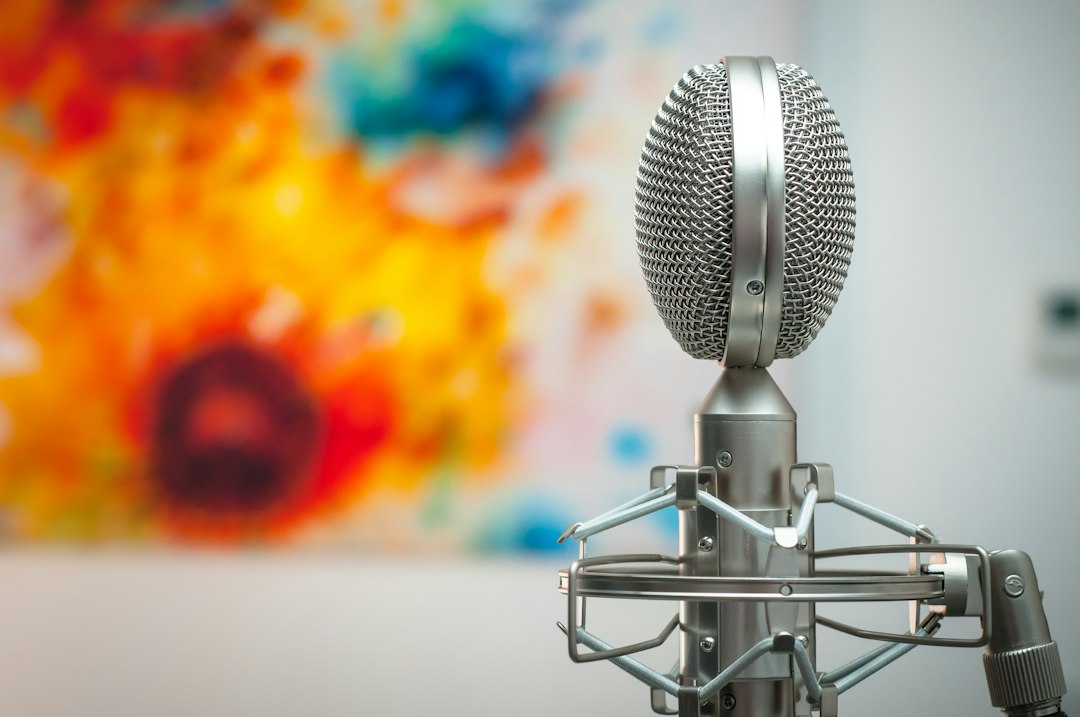
Your mic is the foundation. A dynamic mic used close to your mouth is popular for streaming because it rejects keyboard noise, fans and room echo, while a condenser captures more detail but also more of the room. Decide based on your space using our condenser vs dynamic comparison. A USB mic is the simplest start; a mic on an interface gives more headroom and upgrade room — see USB mic vs audio interface.
Audio is only one part of the kit. For the full picture, including camera, lighting and capture gear, see our Twitch streaming setup guide.
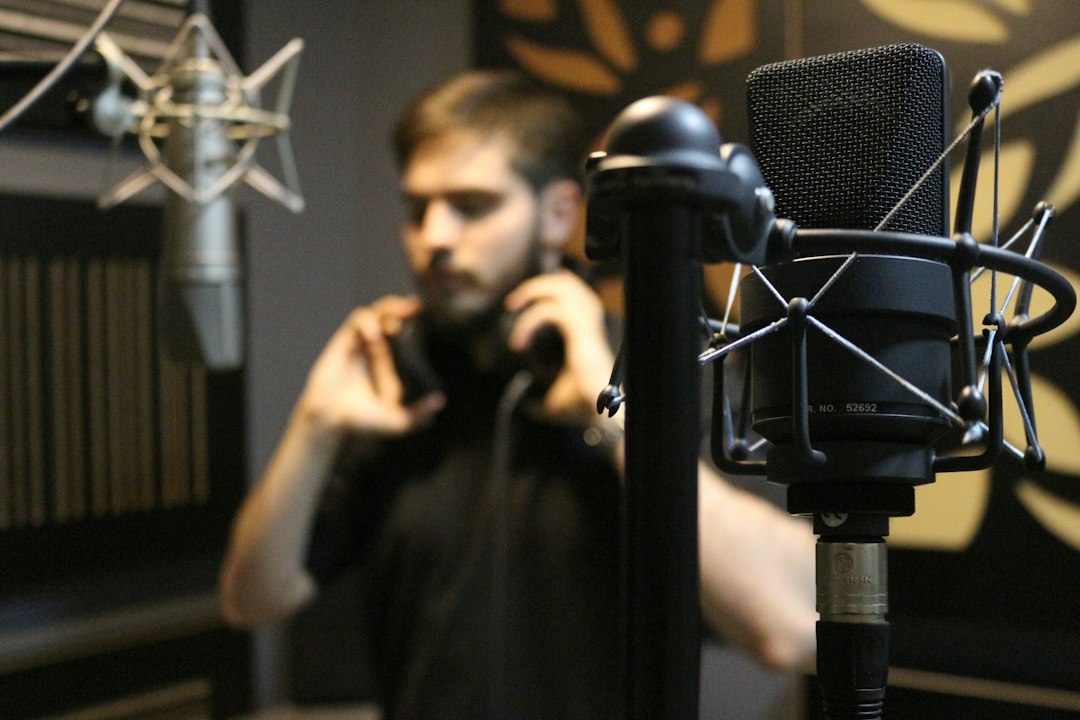
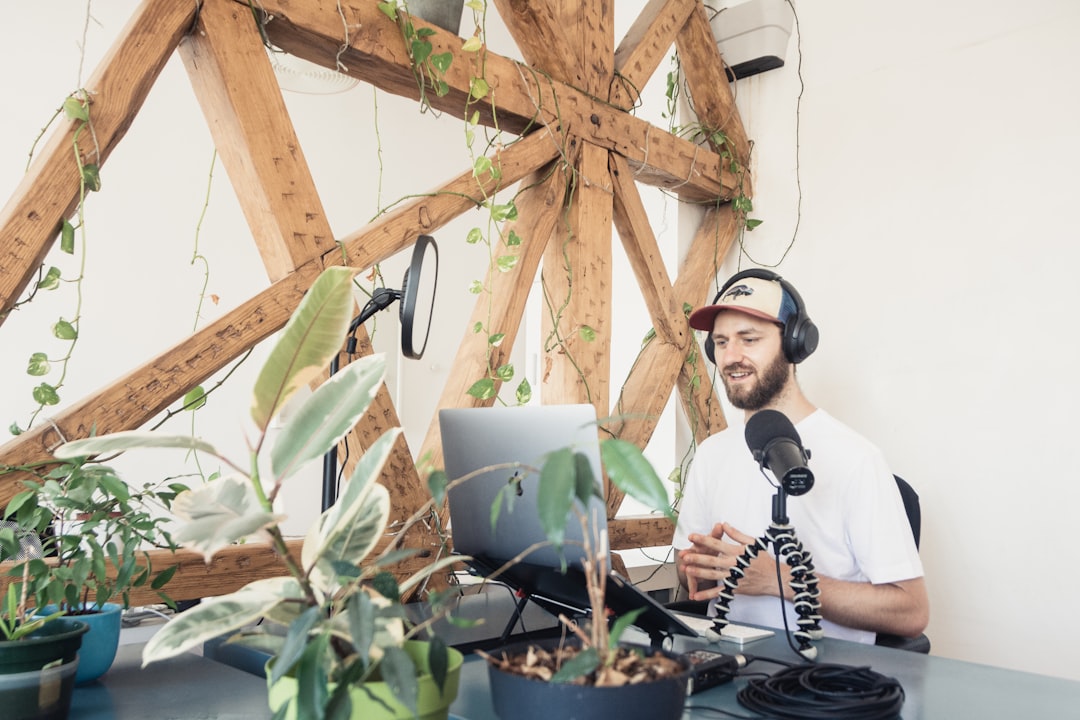
Whichever you choose, mic position matters as much as the mic itself. Work close — a hand’s width or less — and speak slightly across the capsule rather than straight into it, with a pop filter or foam windscreen to soften plosives. A solid desk arm or boom keeps the mic off the desk, which stops keyboard thumps and mouse clicks travelling up the stand into your audio.
Try the free AI Audio Enhancer →
Set clean input levels
Set your mic gain so your voice peaks with comfortable headroom and never clips. Inconsistent or distorted levels are the most common amateur giveaway. The same gain staging principles from music recording apply directly: aim for a strong, clean signal without pushing into the red.
A practical target is to have your normal speaking voice sit well below the top of the meter, leaving room for the moments when you get loud or excited. If you have to shout to register on the meter, your gain is too low and you’ll be amplifying hiss; if quiet speech already lights up the meter, it’s too high and big moments will clip. Set the level with the volume and energy you actually stream at, not a polite test phrase.
Add light processing in your broadcast software
In your streaming software (such as OBS), add a short filter chain to your mic so it sounds polished and consistent:
- Noise suppression and a noise gate to keep the mic quiet between sentences.
- A compressor to even out your volume as you get louder during exciting moments.
- Gentle EQ to remove low rumble and add a little clarity.
Keep it subtle. The reasoning behind each tool is in our EQ and compression fundamentals. For a full step-by-step in OBS specifically, see how to set up streaming audio in OBS.
Order matters in a filter chain. A sensible sequence is noise suppression first, then a gate, then EQ, then the compressor last so it works on an already-cleaned signal. Set the gate’s threshold just above your room noise so it opens the instant you speak but closes in the gaps — too aggressive and it will clip the start of quiet words. If persistent fan or keyboard hum is the real problem, the same approach we use to remove background noise from a recording works here too. With the compressor, a modest ratio and slow-ish release keeps your voice steady without that pumped, breathing sound. The aim is for a listener to notice nothing at all except a clear, even voice.
Balance voice, game and music
Your voice should always sit clearly above the game and any background music. Set music quietly enough that it never competes with speech, and adjust game audio so big in-game moments don’t bury your commentary. Use a pair of closed-back monitoring headphones rather than speakers so your output doesn’t bleed back into the mic and cause echo.
If your software supports it, route your microphone, game and music to separate audio tracks rather than mixing everything into one. Separate tracks let you set independent levels, fix a balance problem after the fact, and — importantly — strip music out of a clip or VOD without losing your voice. It is the single biggest quality-of-life improvement once you start editing highlights.
Avoid muted VODs from copyright
Twitch can mute or flag VODs that contain copyrighted music. Use licensed or royalty-free background music to keep your highlights and replays intact — our guide on where to find royalty-free music applies to streamers too. Routing music on its own audio track also lets you remove it later when you clip content.
If you want a stream-safe source of background music, our roundup of the best AI music for Twitch compares generators by licence and loopability.
Common mistakes to avoid
Most streaming audio problems come from a handful of repeat offenders rather than bad gear:
- Sitting too far from the mic. Distance brings up room echo and noise, then people crank gain to compensate and make it worse. Get close and lower the gain.
- Over-processing. Stacking heavy noise suppression, an aggressive gate and a hard compressor leaves you sounding robotic and underwater. Use the lightest settings that do the job.
- Monitoring on speakers. Speaker output bleeds back into the mic, causing echo and feedback. Closed-back headphones fix this instantly.
- Music and game too loud. If a viewer struggles to hear you over the action, pull everything else down rather than shouting over it.
- Never listening back. What you hear live and what the stream sends are not the same thing, so an occasional check on a recording is essential.
Test, then refine over time
Record a short local test, then listen back on headphones: is your voice clear and forward, is the gate cutting words, is the music too loud? Fine-tune one setting at a time. As your channel grows, treating your room and upgrading your mic chain are the upgrades that pay off most. If you also chat with your audience on Discord, the same fundamentals carry over to improving your Discord audio quality.
Frequently asked questions
What audio settings do I need for Twitch streaming?
Select your real microphone as the input, set levels so speech peaks with headroom, and add light noise suppression, a gate and gentle compression. Then balance your voice above game and music. Consistency matters more than fancy gear.
How do I stop my Twitch VODs getting muted?
Muted VODs are usually caused by copyrighted music. Use royalty-free or properly licensed tracks, keep music on a separate audio track, and avoid playing commercial songs over your stream.
Should I use a dynamic or condenser mic for Twitch?
Dynamic mics are often the better choice for streaming because they reject keyboard noise and room echo when used close. A condenser can sound great in a quiet, treated room but will pick up more background noise.
Why does my voice sound quiet compared to other streamers?
Usually it’s a balance issue rather than volume: game and music are sitting too high, so your voice gets lost. Pull those down first, then use a gentle compressor to keep your speaking level steady so quieter moments still come through clearly.