
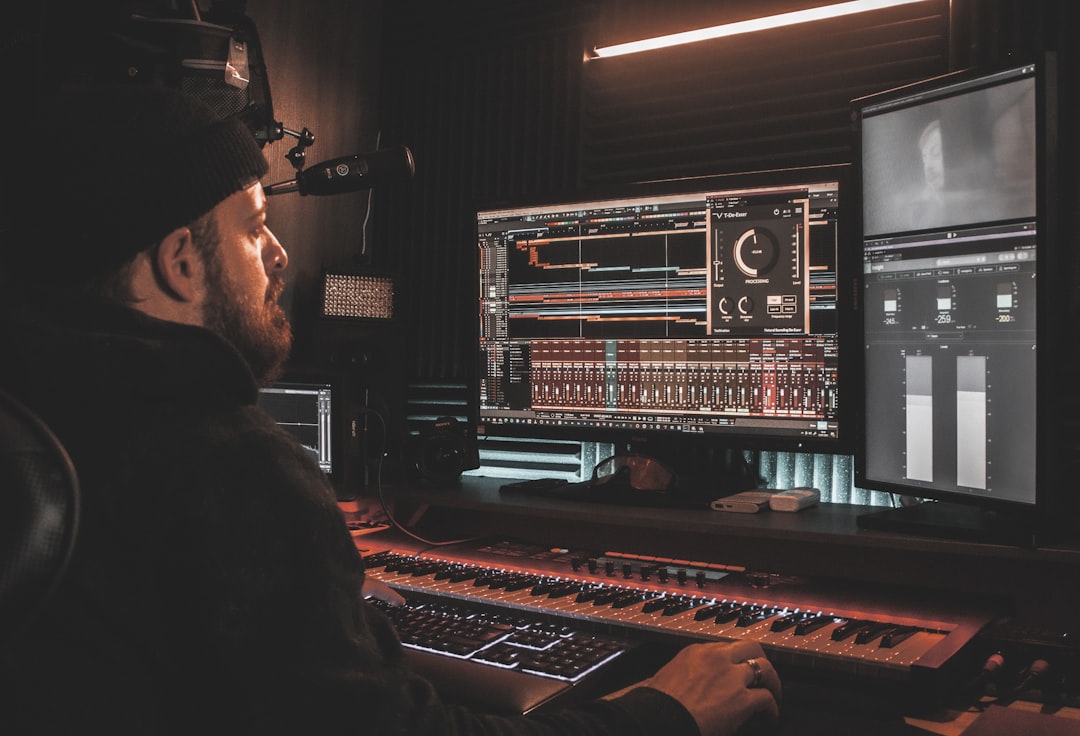
Knowing how to install VST plugins comes down to two things: putting the plugin file in the folder your DAW scans, and telling your DAW to rescan. Most installers do the first part for you; the rest of this guide covers exactly where things go on Windows and Mac and how to fix a plugin that will not show up. If you are still new to the format itself, our explainer on what a VST actually is sets the groundwork.
Quick answer
- Run the plugin’s installer (or copy the file into the correct VST folder).
- Note the folder path the installer uses.
- Open your DAW’s plugin settings, add that folder to the scan paths, and rescan.
- Find the plugin in your DAW’s plugin list and load it.
VST2, VST3, AU and other formats
Plugins come in a few formats. VST3 is the current standard, VST2 is the older version still widely used, AU (Audio Units) is Mac-only, and AAX is for Pro Tools. Install the format your DAW supports — most installers let you tick which to install. If you are unsure of the difference between VST and AU, our full comparison breaks down which one your DAW needs.
A practical rule: if you are on a Mac running Logic, you need AU. If you are on anything else, you almost always want VST3, and you only fall back to VST2 when a plugin you rely on has never been updated to VST3. There is no audio-quality difference between the formats — they are just different wrappers around the same processing — so pick the one your DAW handles best and do not install duplicates of the same plugin in several formats. Doing so only makes your plugin list longer and your scans slower.
How to install a VST on Windows
- Run the installer. Most plugins ship as a .exe installer. During setup it usually asks which formats to install and where to put VST3 files.
- Know the default folders. VST3 plugins go to
C:\Program Files\Common Files\VST3. VST2 plugins have no fixed location, but a common path isC:\Program Files\VSTPluginsorC:\Program Files\Steinberg\VSTPlugins. - If there is no installer, copy the
.dll(VST2) or.vst3file into one of those folders manually. - Rescan in your DAW (see below).
One Windows habit worth forming: pick a single, consistent VST2 folder and point every DAW at it. Because VST2 has no enforced location, it is easy to end up with plugins scattered across three or four folders, which leads to duplicates and missing plugins later. Keeping everything in one place — for example a dedicated C:\VST2 folder you create yourself — makes future installs and clean-ups far simpler.
How to install a VST on Mac
- Run the .pkg installer if there is one; it places files automatically.
- Know the default folders. VST3 plugins go to
/Library/Audio/Plug-Ins/VST3, VST2 to/Library/Audio/Plug-Ins/VST, and AU to/Library/Audio/Plug-Ins/Components. - For manual installs, drag the
.vst3,.vstor.componentfile into the matching folder. You may need to enter your password. - If macOS blocks an unsigned plugin, allow it in System Settings under Privacy and Security.
Note that the /Library folder above is the system-wide Library at the root of your drive, not the hidden ~/Library inside your user account. Both can hold plug-ins, but installers normally use the system one, so that is where you should look first. On Apple Silicon Macs, also check that the plugin offers a native or universal build; older Intel-only plugins can still run through Rosetta, but they may force your DAW into Rosetta mode, which is worth avoiding where a native version exists.
Make your DAW find the plugin
After installing, the DAW needs to scan its folders. The location varies:
- Ableton Live: Preferences, Plug-Ins, enable VST folders and turn on “Use VST3 System Folders” or set a custom path, then rescan.
- FL Studio: Options, Manage Plugins, set the search paths and click “Find more plugins”. We cover this in detail in our guide to adding VST plugins in FL Studio.
- Logic Pro: uses AU; Logic scans on launch and runs a validation. Use Plugin Manager to reset failed plugins.
- Reaper: Preferences, Plug-ins, VST, set the VST paths and click “Re-scan”. See our walkthrough on installing plugins in Reaper if scanning gives you trouble.
- Cubase / Studio One: open the plugin manager and rescan.
If you have just set up your DAW, our guide to the best free DAWs for beginners and the home studio gear checklist will help you get the rest of the setup right.
Common mistakes when installing plugins
Most “the plugin won’t load” problems trace back to a handful of avoidable errors. Watch for these:
- Installing the wrong format. Ticking VST2 only and then wondering why Logic, which needs AU, shows nothing. Always install the format your DAW reads.
- Pointing the DAW at the wrong folder. The installer used one path; your DAW is scanning another. Note the exact path the installer reports and add that to the scan list.
- Forgetting to authorise. Many paid plugins fail their first scan because the licence or iLok activation has not been completed yet. Authorise first, then rescan.
- Leaving the file in your Downloads folder. Dragging a plugin to the desktop or leaving it unzipped in Downloads will not work — it has to sit inside a scanned plug-in folder.
- Half-extracted archives. If a plugin came as a .zip, extract it fully before moving the file. A plugin still inside a zip will never be detected.
If the plugin still will not appear
- Confirm the plugin format matches what your DAW supports (Logic needs AU, not VST).
- Check 64-bit vs 32-bit — modern DAWs only load 64-bit plugins.
- Make sure the file is actually in a scanned folder, then rescan.
- Restart the DAW; some only scan on launch.
- Activate any required licence or iLok authorisation first.
Once it loads, get your levels right before you start tweaking — see gain staging explained. If you are looking for new plugins to install, our roundup of the best free VST plugins is a good place to start.
Frequently asked questions
Where do VST plugins install by default?
On Windows, VST3 files go to C:\Program Files\Common Files\VST3. On Mac, they go to /Library/Audio/Plug-Ins/VST3, with AU components in /Library/Audio/Plug-Ins/Components.
Why can’t my DAW find a plugin I just installed?
Usually the folder is not in the DAW’s scan paths, the format is wrong for that DAW, or you have not rescanned. Add the correct folder to the scan list, confirm the format, then rescan or restart the DAW.
Does Logic Pro use VST plugins?
No. Logic uses Audio Units (AU). Install the AU version of any plugin you want to use in Logic; VST and VST3 files will not appear.
Do I need to install both VST2 and VST3?
No. Install whichever your DAW prefers, and on modern DAWs that is VST3. Only keep VST2 around if a plugin you use was never updated to VST3, or if an old project session specifically loaded the VST2 version and you want it to open without relinking.
Is it safe to delete an old plugin file?
Yes, as long as no saved project still relies on it. Removing the file from the plug-ins folder and rescanning will clear it from your DAW. If a project that used it sounds different afterwards, reinstall that plugin so the session loads correctly.



