
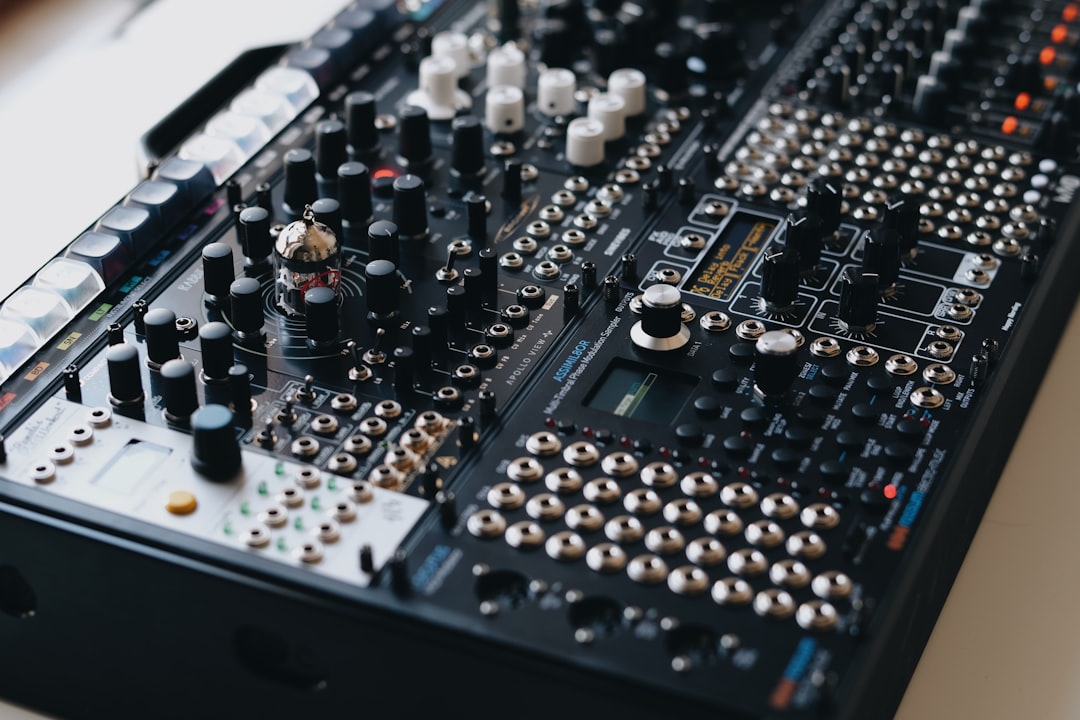
Tidy cabling isn’t just about looks — it reduces hum, prevents accidental disconnects, and makes troubleshooting far faster. Learning how to cable manage a home studio comes down to a few principles: separate audio from power, label everything, leave a little slack, and route deliberately. Here’s a practical system you can apply to any desk.
Plan before you tie anything down
Map the signal flow first: sources (mics, instruments) into the interface, interface out to monitors, plus power for everything. Knowing the path stops you bundling cables you’ll need to reroute later. Sketch where each device lives so cable runs are as short as practical — shorter runs mean less clutter and less chance of induced noise. If you’re still arranging the room, our small-room setup guide and gear checklist help you place gear sensibly first.
Separate audio cables from power cables
This is the rule that protects your sound. Power cables can induce hum into nearby audio cables, so:
- Run audio and power along different paths where you can.
- Where they must cross, cross them at right angles rather than running parallel.
- Keep wall-wart power supplies and chargers away from mic and instrument cables.
Good separation prevents the kind of hum covered in how to fix a ground loop hum before it ever starts.
Bundle and route neatly
Once paths are set, group cables that travel together:
- Use reusable hook-and-loop straps rather than zip ties so you can re-dress the bundle when gear changes.
- Run bundles along desk edges or through cable trays/raceways under the desk to keep the floor clear.
- Leave a small service loop of slack at each device so you can move it slightly without stress on the connector — strain at the plug is a leading cause of cable failure. Starting with well-made leads from one of the best microphone cable brands also means fewer surprise failures down the line.
Label everything
When a channel goes silent mid-session, labels save you. Tag both ends of every cable with what it connects, using flag labels or coloured tape. Colour-coding by function — say one colour for monitor feeds, another for headphones — lets you trace a problem at a glance. This pairs naturally with testing: if a labelled cable acts up, you’ll know exactly which one to check with how to test an XLR cable.
Tame power and rack gear
Consolidate power into one or two clean points rather than daisy-chaining strips around the room. A single quality strip or a power conditioner gives a tidy, common ground and fewer trip hazards. If you have several rack units, mounting them keeps connections stable and accessible — see rack mounts and cases for home studios. For USB-heavy desks, a powered hub reduces the cable sprawl from your computer; the best USB hubs for audio interfaces guide covers the options.
A step-by-step way to dress a desk
If the wiring behind your desk is already a knot, it’s usually faster to start fresh than to untangle in place. Work through it in order rather than tying as you go:
- Unplug and lay everything out. Pull every cable, set the gear where it will actually live, and look at the bare runs before committing to a route.
- Run the longest backbone cables first. Power feeds and the runs to your monitors define the main paths; get those clean, then add shorter signal cables on top.
- Dress to fixed points. Anchor bundles to the desk frame or a tray so the weight of the cable never hangs off a connector.
- Test before you tidy fully. Power up and confirm every channel passes signal first — it’s far easier to fix a swap now than after you’ve strapped it all down.
- Strap last. Only once the layout works do you cinch the hook-and-loop and tuck the slack away.
Common cable-management mistakes to avoid
A few habits quietly undo good intentions:
- Coiling cables tight around your hand. This twists the conductors and shortens cable life. Use an over-under coil so the cable lies flat when you redeploy it.
- Over-tightening straps. A bundle squeezed hard can deform the insulation and, over time, stress the conductors. Snug is enough.
- Bundling mic-level and power together for neatness. It looks tidier but invites hum. Separation always wins over symmetry.
- No slack at the plug. A taut cable transfers every desk movement straight to the connector, which is exactly where cables fail.
- Hiding everything permanently. If you can’t reach a cable to swap it, you’ll dread changing gear. Keep access in mind.
Maintain it over time
Cable management isn’t a one-off. Re-dress bundles whenever you add gear, coil spare cables properly (over-under, not tight kinks) to avoid internal breaks, and store unused leads in a labelled box. Coiling habits matter for longevity — the same care described in how to store microphones applies to cables. A worn lead is worth retiring rather than re-dressing, so it helps to know how often you should replace studio cables before a frayed one fails mid-session. If gathering straps, trays and labels separately feels like a chore, a bundled cable management kit gets you everything in one order.
Frequently asked questions
Does messy cabling actually cause noise?
It can. Audio cables running parallel to power leads pick up hum, and loose connections crackle or drop out. Separating power from signal and keeping connectors strain-free removes a surprising amount of noise and unreliability.
Should I use zip ties or hook-and-loop straps?
Hook-and-loop (Velcro-style) straps are better for studios because you’ll rearrange gear often. Zip ties are permanent and easy to over-tighten, which can damage cables. Save zip ties for runs you’re sure won’t change.
How much slack should I leave at each device?
Leave a small service loop — enough to move the device a little and to relieve strain at the connector — but not so much that you create a tangle. The goal is no tension pulling directly on any plug.
Do balanced cables need the same separation from power?
Balanced connections reject a lot of induced noise, which is why they’re worth using for longer runs, but they’re not immune. Keep them away from power supplies and cross at right angles anyway — good routing costs nothing and removes the variable entirely.
How often should I re-dress my cabling?
Any time you add, remove, or move a piece of gear. A quick re-dress after each change keeps the system from drifting back into chaos, and it’s far less work than an occasional full teardown.



