To turn album art into a video, you animate the still cover — add subtle motion, sync it loosely to the track, and export it in the aspect ratio each platform wants. You can do it by hand in a video editor, or paste your song into an AI tool and get a finished clip in a couple of minutes. Both routes are covered below.
An album art video is the single most reusable visual a release can have: it feeds a Spotify Canvas, an Instagram Reel, a YouTube upload, a TikTok, and a X/Twitter post from one source file. Get the workflow right once and you never post a naked audio file again.
Violet Recording is reader-supported — we may earn a commission from links on this page, at no extra cost to you.
The fastest way to make an album art video
Here are the three routes, from most control to least effort. Pick the row that matches how much time you actually have before the release date.
| Route | Best for | Time | Skill needed |
|---|---|---|---|
| AI generator (e.g. Solmi) | A finished, multi-format video with zero editing | 2–5 min | None |
| Manual edit (CapCut, Premiere, DaVinci) | Full creative control over the motion | 30–90 min | Basic editing |
| Visualizer app (Specterr, Vizzy) | Reactive waveform/particle motion tied to audio | 10–20 min | Light |
If you just want it done, jump to the AI route. If you care about a specific look — a slow zoom on the artwork, a film grain, a colour shift on the drop — the manual route is worth the extra time.
What you need before you start
Three files and one decision. Get these lined up and every method below goes faster.
- The cover art, at full resolution. Ideally 3000 × 3000 px, the same square file you sent to your distributor. A low-res thumbnail will look soft once it moves.
- The audio. A WAV or high-bitrate MP3 of the track, or the exact section you want to feature (a Canvas only needs a 3–8 second loop).
- The aspect ratio. Decide where it’s going first. Spotify Canvas and Reels/TikTok are vertical 9:16; YouTube is 16:9; a feed post is square 1:1. Exporting the right shape from the start saves an ugly crop later.
If your cover itself needs work before it moves, our album cover art tool can generate or clean up the still first, and the music visualizer is a quick browser option for a waveform look.
Method 1: Generate the album art video automatically with AI
The lowest-effort route is to hand a song to an AI tool and let it build the motion, the sync, and the export formats for you. This is where Solmi fits: it’s an all-in-one AI music suite that actually makes the music video, not just the song. You give it a track and it renders a video in 16:9, 9:16, or 1:1 — so one job covers YouTube, Reels, and your feed in a single pass.
A few features make it a genuine one-stop pick for this task:
- Suno-to-Video: if you made the track in Suno or Udio, paste the link and Solmi turns it straight into a finished video.
- Lyric Video and AI Singing Video: if you’d rather have words on screen than a static cover, it generates those too.
- AI Cover: reimagine or generate the artwork itself if your still isn’t doing the song justice.
- Browser-based, desktop and mobile: nothing to install, and it runs from a phone if that’s all you have on release day.
Pricing is flat — there’s a free tier to test it, and Pro starts at $9.99/mo with no credit wall, so you’re not rationing renders mid-project. For current free-tier caps, export length, and commercial-rights terms, check the Solmi site directly, since those can change. The workflow is roughly: upload or paste the track, pick the format(s), let it render, then download and post. That’s the whole thing.
Method 2: Animate the cover by hand in a video editor
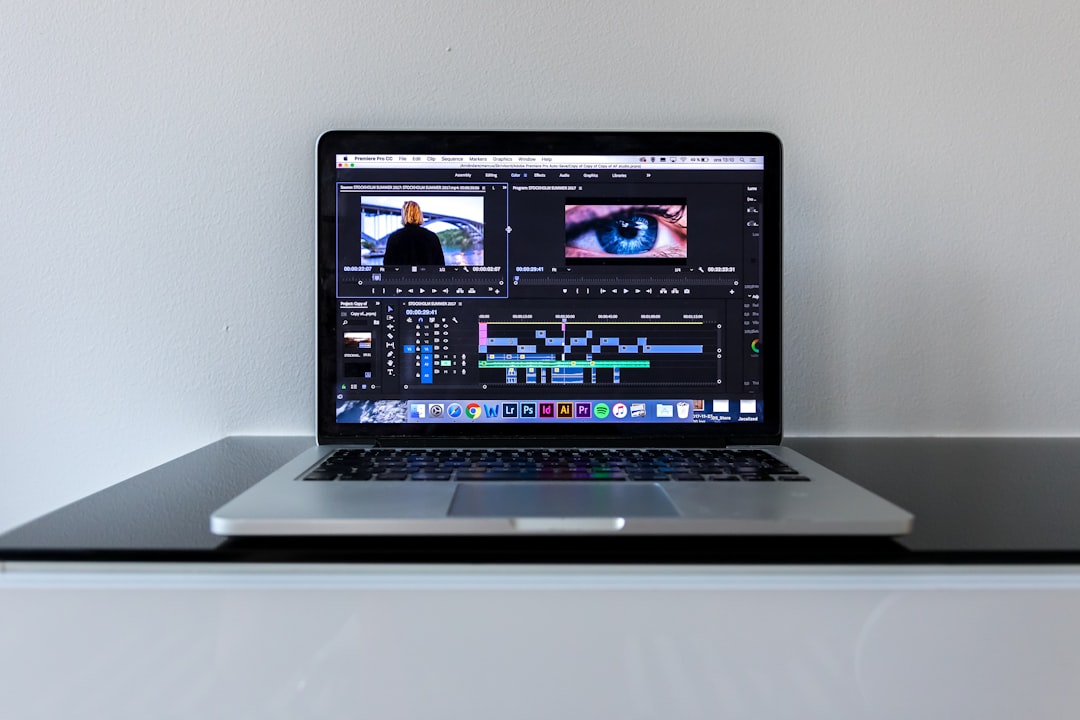
If you want a specific look, do it manually. This works in free tools like CapCut and DaVinci Resolve, or paid ones like Premiere Pro — the steps are the same everywhere.
- Create a project in your target ratio. Set the canvas to 1080 × 1920 for vertical, 1920 × 1080 for YouTube.
- Import the cover and scale it up ~10–15%. Starting slightly zoomed-in gives you room to animate movement without exposing the edges.
- Add a slow keyframe move. A gentle zoom (a “Ken Burns” push) or a slow drift across the artwork over the clip’s length. Keep it subtle — a few percent of scale is plenty. Aggressive motion looks cheap.
- Layer in one texture. A light film grain, a soft light-leak, or a dust overlay set to a low opacity adds life. One is enough; stacking three looks messy.
- Drop in the audio and trim to the beat. For a Canvas, loop a clean 3–8 second section. For YouTube, run the full track.
- Export. H.264 MP4, high bitrate. For a Spotify Canvas, keep it under the platform’s short length limit and check the current spec before you upload.
This is the same discipline as a good visualizer — restraint beats spectacle. The artwork is the star; the motion is a frame around it.
Method 3: Add reactive motion with a visualizer tool
The middle route is a visualizer, which ties the motion to the audio itself — a waveform, spectrum bars, or particles that pulse on the beat, sitting behind or around your cover. Tools like Specterr and Vizzy specialise in this audio-reactive look and are popular for lyric and single releases. Most run on a subscription or credit-based model, so check current pricing before committing.
Other names you’ll run into: Kaiber and Runway lean into full AI video generation (morphing, generative scenes) rather than a clean cover animation; Sondo and Freebeat aim at mobile, fast AI music videos; Neural Frames and Plazmapunk generate trippy, prompt-driven visuals. They’re all worth a look, but for a simple “make my album art move” job they can be overkill. Match the tool to the goal — a reactive waveform is a different product from a slow, cinematic cover push.
Which album art video format to export for each platform
One source file, three shapes. Export each once and you’re covered everywhere:
- Spotify Canvas — 9:16 vertical: a short, seamless loop (roughly 3–8 seconds). No text, no logos; Spotify’s guidelines forbid them.
- Reels, TikTok, Shorts — 9:16 vertical: the full hook or chorus, with the artwork centred so captions don’t cover it.
- YouTube — 16:9 horizontal: the whole track, ideal for the “topic”/audio upload or a lyric video.
- Feed post — 1:1 square: a short teaser for Instagram or X.
This is exactly why an AI tool that exports all three ratios in one pass saves so much time — you skip re-cropping and re-rendering for every platform. Once the visual is done, pair it with a solid rollout; our promotion guides in the AI Music Tools hub cover where to post it and when.
Frequently asked questions
Can I make an album art video for free?
Yes. CapCut and DaVinci Resolve are free and handle the manual animation route completely. Several AI tools, including Solmi, also offer a free tier you can test before paying — check the current free-tier limits on their site, since caps and export options change.
How long should a Spotify Canvas from my album art be?
Short and loopable — a clean 3–8 second segment that repeats seamlessly, in 9:16 vertical. Avoid text and logos, since Spotify’s Canvas guidelines don’t allow them. Always confirm the current length and format spec in Spotify for Artists before uploading.
Do I need the original high-resolution cover file?
Ideally yes. Use the same full-res square (around 3000 × 3000 px) you sent to your distributor. A small thumbnail will look soft and pixelated once you scale and animate it. If your only copy is low-res, regenerate or upscale it first with an album cover art tool before animating.