
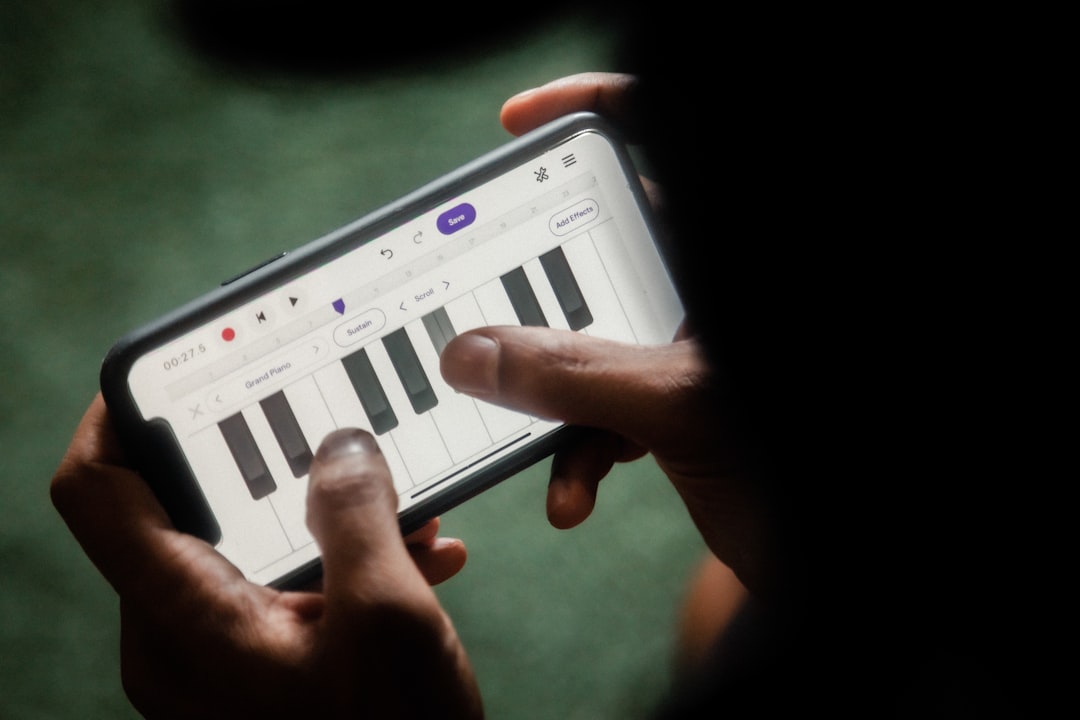
This guide shows you how to use BandLab, a free, cross-platform music app that runs on iOS, Android and the web. You will learn to start a project, record and layer tracks, add loops and effects, mix and export, and even collaborate with other musicians online. Everything here is doable on a phone with a pair of headphones.
Why BandLab is a great starting point
BandLab is one of the few genuinely full-featured music apps that is free and works on both iOS and Android, with cloud saving so your projects follow you across devices. It includes a multitrack editor, a large loop library, virtual instruments, guitar and bass amp tones, and a built-in community for sharing and remixing. If you are weighing it against Apple’s app, our GarageBand vs BandLab comparison helps you decide, and our list of the best mobile DAWs puts it in wider context.
Step 1: Create an account and start a project
Sign up for a free account so your work saves to the cloud. Tap to create a new project and you will see the multitrack timeline. From here you can add tracks for instruments, loops or recordings. Give the project a name so you can find it later.
Step 2: Add a beat or loops
The quickest way to get sound going is the loop library. Browse by genre or instrument, preview loops, and drag the ones you like onto the timeline. Stack a drum loop, a bass loop and a melodic loop to rough out a groove. You can also use the built-in drum machine to program your own pattern if you want more control. For ideas, see how to make beats on your phone.
Step 3: Record your own parts
To record vocals or an instrument, add an audio track, arm it and tap record. Use headphones so the backing track does not bleed into the mic. BandLab also includes amp and pedal tones for guitar and bass, so you can plug in through an interface and get a usable tone without extra gear. For cleaner takes, read how to record vocals on your phone.
- Record a few takes and keep the best one.
- Watch your input level so it is strong but never clipping.
- Trim silence at the start and end of each clip.
Step 4: Add virtual instruments and MIDI
For keys, synths or extra drums, add an instrument track and play the on-screen keyboard or pads. You can connect a MIDI keyboard for a more natural feel — see how to connect a MIDI keyboard to your phone. Edit notes afterwards to fix timing or pitch.
Step 5: Mix with effects and the mixer
Open the mixer to balance levels and add effects per track. Sensible first moves:
- Set rough volume levels so vocals sit on top and drums hold the bottom.
- Add EQ to clean up muddy or harsh tracks.
- Use reverb and delay sparingly to add depth.
- Pan instruments left and right so the mix feels wide.
If you want to go further, our guide to mixing a song on your phone covers the workflow in detail.
Step 6: Collaborate (optional)
One of BandLab’s standout features is collaboration. You can share a project with another user, fork someone else’s track to remix it, or invite a collaborator to add parts. This is a low-pressure way to learn from others and finish ideas you are stuck on.
Step 7: Export and share
When the track is done, use the export or share option to render a mixed audio file you can save or post. You can also publish straight to the BandLab community. For other destinations and stem exports, see how to export a song from a music app.
How to get a clean recording on a phone
BandLab is only as good as the sound you feed it, and the recording stage is where most beginners lose quality they can never get back. A few habits make a big difference. Record in the quietest room you can find, ideally one with soft furnishings — carpet, curtains and a sofa — because bare walls and tiled floors throw harsh reflections back into the mic that no amount of mixing will fully remove. If background hum or street noise is unavoidable, our tips on how to reduce noise when recording on a phone will help you tame it. Put your phone or interface into aeroplane mode while recording so a call or notification cannot ruin a perfect take.
Set your gain so the loudest part of your performance peaks comfortably below the top of the meter, leaving headroom rather than pushing for the biggest possible level. Digital clipping is permanent distortion, and it is far easier to turn a quiet but clean take up later than to repair a loud, crackly one. If you are singing, work a hand-span away from the mic and slightly off-axis so plosives (the burst of air on “p” and “b” sounds) do not thump the capsule. Monitoring through headphones, never the speaker, stops the backing track leaking into your recording and creating a hollow, phasey sound.
Common BandLab mistakes to avoid
The same handful of problems trip up most newcomers, and all of them are easy to sidestep once you know to look for them.
- Stacking too many loops. A wall of full-range loops fights for the same space and turns to mush. Mute everything except the core groove, then add parts back one at a time, keeping only what earns its place.
- Mixing far too loud. Your ears tire and lose judgement at high volume. Set a comfortable, conversational listening level and leave it there so your decisions stay consistent.
- Reaching for effects before balance. Get the raw fader levels right first. Reverb, delay and heavy EQ cannot rescue a mix where the parts are simply too loud or too quiet relative to each other.
- Ignoring arrangement. Silence and contrast are tools. Dropping instruments out for a verse and bringing them back for a chorus does more for energy than any plugin.
- Not exporting a reference. Bounce a rough mix early and listen to it on your phone speaker, earbuds and in the car. Problems you cannot hear on headphones often jump out elsewhere.
Finished a track? BandLab also has a free built-in mastering tool; our BandLab Mastering review covers what it does well and where it falls short.
Frequently asked questions
Is BandLab really free?
Yes. The core app, multitrack recording, loops, instruments and cloud saving are free to use. It is one of the most capable free options on either platform.
Does BandLab work on Android and iPhone?
Yes. BandLab runs on Android, iOS and in a web browser, and your projects sync across them through your account, so you can start on a phone and finish on a laptop.
Can I make professional-sounding music in BandLab?
You can get a long way, especially with good arrangement and mixing habits. The limits are more about skill and source quality than the app. For an honest look at this, see can you make professional music on a phone.
Do I need an audio interface to use BandLab?
No. You can record perfectly usable tracks with your device’s built-in mic and program instruments with the on-screen keyboard and pads. An interface helps when you want to plug in a guitar, bass or a better external microphone — see the best microphones for smartphones if you are shopping for one — and it generally gives you lower latency and a cleaner signal, but it is an upgrade rather than a requirement to get started.
Why does my recording sound quiet or distant?
Usually it is mic distance and room sound. Move closer to the microphone, raise your input gain a little, and record in a smaller, softer space. If the track sounds thin and washy, you are probably hearing reflections from a hard room or the backing track bleeding in — switch to headphones and add some soft furnishings around you.



