
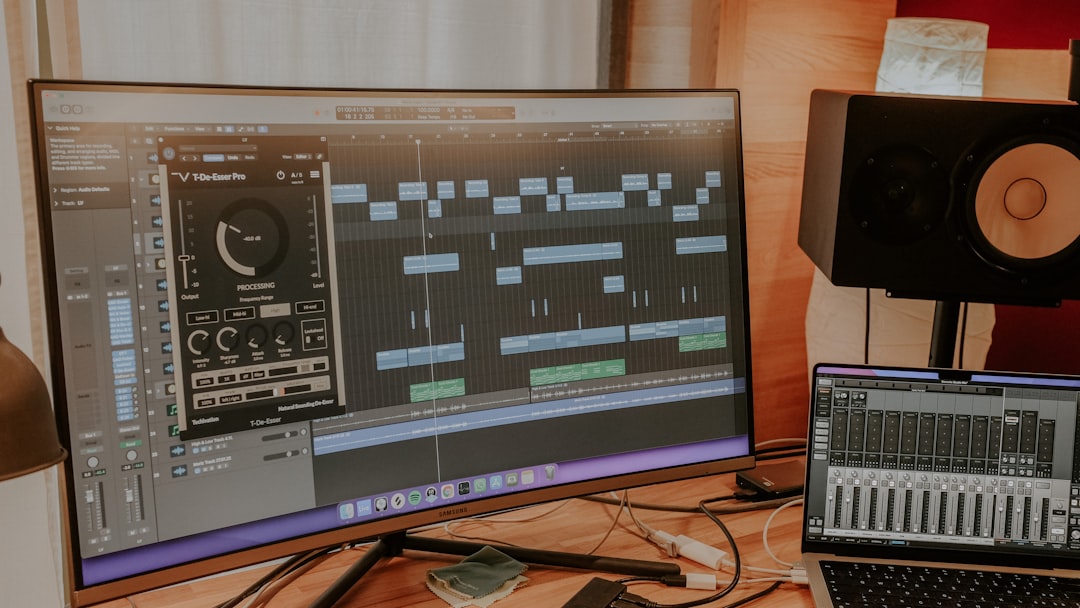
Here is how to use Drummer in Logic Pro: add a Drummer track, choose a genre and a virtual drummer whose style fits your song, then shape the performance with the Drummer Editor’s simple controls for loudness, complexity, fills and feel. Drummer generates realistic, editable beats without you programming a single note.
This guide assumes you already have a Logic Pro project open with at least a rough chord or guitar idea to play along to.
Add a Drummer track
Create a new track and choose the Drummer track type. Logic adds a track using one of its drum patch libraries (an acoustic kit, electronic kit, or percussion, depending on the genre) and fills the timeline with editable Drummer regions.
- Each region is a self-contained beat you can edit independently.
- Drummer follows your project tempo automatically, so it works well alongside Smart Tempo in Logic Pro when your idea was recorded freely.
- You can have more than one Drummer track for, say, an acoustic kit plus electronic percussion.
Pick a genre and a drummer
Open the Library and you will see drummer “characters” grouped by genre — rock, alternative, songwriter, electronic, hip hop and more. Each drummer has a distinct style and a kit that suits it. Switching drummers changes both the playing feel and the default kit, so audition a few against your track before committing.
Shape the beat in the Drummer Editor
Double-click a Drummer region (or open the Drummer Editor at the bottom of the window) to access the controls that make Drummer powerful:
- The XY pad sets loudness and complexity — drag toward simpler/softer or louder/busier.
- Kit-piece toggles let you choose whether the drummer plays the kick and snare pattern, hi-hats, cymbals, toms and so on.
- Fills and swing sliders adjust how often the drummer adds fills and how loose the timing feels.
- You can follow another track (like your bass or rhythm guitar) so the kick locks to its rhythm.
Edit region by region so verses stay restrained and choruses open up. This arrangement instinct matters as much as the beat itself. A good habit is to build the chorus groove first, then strip it back for the verse, so the song lifts when the chorus arrives instead of running flat the whole way through. Small touches — pulling the hats back in a bridge, adding a fill into a new section — make Drummer feel like a real player rather than a loop.
How to choose the right drummer and groove
The biggest gains come before you touch a single slider, at the point where you pick a character. Treat the choice like casting a session player rather than scrolling a preset list. Start from the energy of the song: a sparse acoustic ballad wants a drummer who sits back and plays for the song, while an up-tempo rock idea wants someone who pushes. Audition two or three candidates over your busiest section, because a groove that feels great under a quiet verse can fall apart once the full arrangement arrives.
- Match the kit to the production, not just the genre. A tight, dry kit suits modern pop and hip hop, while a roomier, more open kit flatters live-sounding rock and singer-songwriter material.
- Let the tempo guide the feel. The same character can play straight or with a relaxed swing; nudge the swing control until the hats breathe with your tempo rather than fighting it.
- Use the “follow” feature to lock the foundation. Pointing the kick at your bass or rhythm guitar instantly tightens the low end and makes the performance sound arranged rather than generated.
- Commit, then refine. Pick a drummer that gets you 80 per cent of the way there and shape the rest in the editor. Endlessly swapping characters usually wastes more time than it saves.
Convert Drummer to MIDI for full control
When you want to fine-tune individual hits, convert the Drummer region to a normal MIDI region. From there you can edit notes in the piano roll, move a snare, delete a crash, or quantise to taste. Many producers let Drummer write the groove, then convert and tweak. If you prefer programming from scratch, the same kit-piece thinking applies in any DAW — see how to make a beat in GarageBand, which shares Apple’s drum tools, or its sibling workflow for adding a Drummer track in GarageBand. If you would rather build the kit yourself, plenty of free drum VSTs give you sounds to program against.
Mix the drums
Drummer outputs to a kit plug-in, and many kits expose individual outputs so you can route the kick, snare and overheads to their own channels for mixing. Process them like any drum bus — tighten with compression, carve space with EQ, and add room. The core moves live in EQ and compression fundamentals, and our full walkthrough on how to mix drums covers the kit end to end. To park drums on their own sub-mix, our guide to sends and returns in a DAW helps. For more Logic workflows, browse the mixing and mastering hub or learn how to create Track Stacks in Logic Pro to group the kit.
Common mistakes to avoid
Drummer is forgiving, but a few habits stop a generated beat from sounding programmed and stiff. Watch for these:
- One region for the whole song. If every section plays the same groove at the same intensity, the arrangement flatlines. Split the timeline and dial back the verses so the choruses have somewhere to lift to.
- Maxing out complexity and fills. Pushing the XY pad to the top-right corner and cranking fills makes the drummer overplay. Busy is not the same as energetic; restraint usually reads as more professional.
- Ignoring the low end. A kick that clashes with the bass muddies the whole mix. Use the follow feature and check the two together in mono before you commit.
- Mixing the kit as a single blob. Leaving everything on one stereo output throws away Drummer’s individual outputs. Splitting them out gives you proper control over kick weight, snare crack and room.
- Converting to MIDI too early. Once you flatten a region you lose the live editing controls, so do your broad shaping first and only convert when you genuinely need note-level edits.
Frequently asked questions
Can I edit individual drum hits in Drummer?
Not directly inside a Drummer region — those controls work on the whole performance. Convert the region to MIDI first, then edit single notes in the piano roll like any programmed beat.
Does Drummer follow my project tempo?
Yes. Drummer regions adapt to your project tempo automatically, so you can change tempo and the groove follows.
How do I make the drums simpler in the verse?
Open that region in the Drummer Editor and drag the XY pad toward less complex and quieter, turn off busier kit pieces like cymbals, and reduce the fills slider. Edit each region separately for verse and chorus dynamics.
Can I use Drummer with my own custom drum kit?
Yes. The performance and the kit are separate, so you can keep a drummer’s groove while swapping the underlying kit plug-in or loading a different patch. This lets you pair a tight modern kit with a busier player, or a roomy live kit with a simpler one, until the sound matches your production.



