
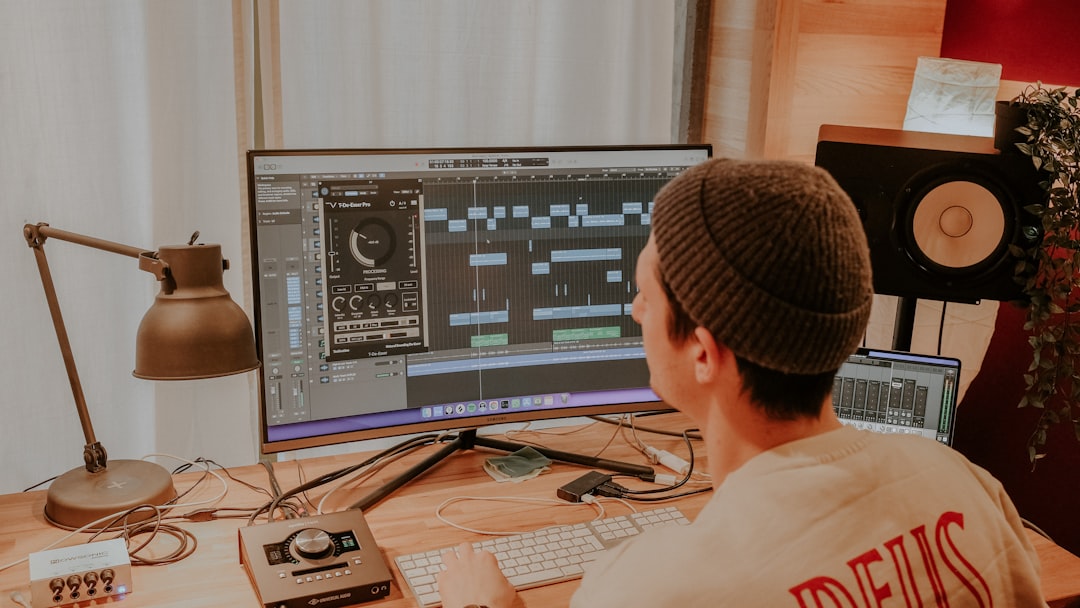
Here is how to use Smart Tempo in Logic Pro: choose a project tempo mode — Keep, Adapt or Automatic — so Logic either holds your set tempo, follows the tempo of what you play, or detects and matches it on the fly. Smart Tempo lets you record without a click and still end up with everything in time.
🔧 Free tool: try our Genre BPM Chart.
🔧 Free tool: try our Tap Tempo / BPM Counter.
This guide assumes you have Logic Pro open and either want to record freely, or you have an existing recording or loop whose tempo you need to work with.
What Smart Tempo solves
Traditionally you record to a fixed click and everything lines up to that grid. Smart Tempo adds flexibility: it can detect the tempo of a freely played performance and bend the project to follow it, or conform an imported loop to your project tempo. That means you can capture a take that breathes naturally, then still edit and quantise it later.
The three Smart Tempo modes
The project tempo mode is the master switch:
- Keep: the project tempo stays fixed. This is classic behaviour — you play to the click and the grid does not move.
- Adapt: the project tempo follows the tempo of your recordings, so Logic reads the feel of what you played and adjusts the tempo map to match.
- Automatic: Logic decides per recording whether to keep or adapt, based on whether you recorded to the click or freely.
Set this in the LCD/tempo display area before you record so Logic handles the take the way you intend. Getting the mode right up front saves a lot of cleanup, because trying to switch a project from Keep to Adapt after recording can shift the timing of material that was already in time.
Recording without a click
- Set the project tempo mode to Adapt (or Automatic).
- Turn the metronome off and record your part — play with natural feel.
- Logic analyses the take and creates a tempo map that follows your performance.
- Now the grid lines up with what you played, so later overdubs and edits stay in time.
A few practical points make this far more reliable. Give Logic a clean, confident performance to analyse: a take with a steady internal pulse produces a far more accurate tempo map than a hesitant one with long pauses or wild rubato. Percussive, clearly articulated material — a strummed guitar, a piano with a defined left hand, a beatboxed groove — gives the tempo detection obvious transients to lock onto. Sustained pads or ambient parts give it almost nothing to work with, so record a rhythmic guide part first and adapt the tempo to that, then build the looser parts on top of the resulting grid.
It is also worth checking the tempo map after the take rather than trusting it blindly. Open the Tempo track and scan for any sudden jumps or implausible values — Smart Tempo occasionally misreads a bar as half or double speed. If a section reads at double tempo, you can correct it without re-recording, and catching it early stops the error propagating through everything you layer afterwards. If the values themselves look unfamiliar, it helps to understand what BPM means before you start editing the map.
Conforming audio to the project tempo
For loops and imported audio, Smart Tempo can detect the file’s tempo and stretch it to your project. Each audio region has a Smart Tempo setting controlling whether it keeps its own tempo, conforms to the project, or follows. This is closely related to Logic’s Flex tools — for surgical timing edits use Flex Time in Logic Pro, and for pitch correction Flex Pitch in Logic Pro. The general principles of stretching audio without artefacts apply across DAWs — see how to time-stretch audio in a DAW, and if you work in Ableton the same idea drives warping audio in Ableton Live.
When you conform a region, the amount of stretching matters for sound quality. Pulling a loop a few BPM to match your song is usually transparent. Stretching it a long way — say from a slow ballad tempo up to an uptempo dance grid — can introduce smearing or a slightly artificial flutter, especially on cymbals, reverb tails and vocals. If a conformed loop sounds off, the file’s detected tempo is often the culprit; correcting the source tempo so the ratio of change is smaller usually cleans it up more effectively than fighting it with stretch settings.
When to use Keep vs Adapt
Use Keep for click-based, electronic or sample-driven projects where a rock-solid grid matters. Use Adapt for live, expressive performances — a solo piano take or a band jam — where the feel should drive the tempo. Automatic is a safe default if you switch between both. Whatever you choose, a reliable reference click helps when you do want to play in time; see how to make a click track in a DAW. For more Logic tutorials, visit the mixing and mastering hub.
Common mistakes to avoid
Most Smart Tempo problems come down to a handful of habits rather than the feature itself:
- Leaving the mode on the wrong setting. Recording a free performance with the project on Keep forces it onto a grid it never followed; recording a tight click-based part on Adapt lets Logic nudge a perfectly good tempo. Decide before you hit record.
- Trusting the first analysis. Always glance at the Tempo track for half- or double-time misreads before you build on the take.
- Adapting to a weak guide. Tempo detection needs clear transients. Sparse or heavily reverbed parts confuse it, so adapt to a percussive part and layer the rest afterwards.
- Over-stretching loops. The further you conform a file from its native tempo, the more audible the artefacts. Keep the ratio modest where you can.
- Changing modes mid-project. Flipping from Keep to Adapt after material is already in time can move regions that were fine. Work out your approach up front instead.
Frequently asked questions
What does Adapt mode do in Smart Tempo?
Adapt makes the project tempo follow your recordings. Logic analyses the feel of what you played and builds a tempo map to match, so the grid lines up with a freely played performance instead of forcing it onto a fixed click.
Can Smart Tempo match an imported loop to my song?
Yes. Set the region’s Smart Tempo behaviour so it conforms to the project tempo, and Logic detects the loop’s tempo and time-stretches it to fit your song.
Will Smart Tempo change a recording I made to the click?
In Keep mode, no. In Automatic mode, Logic recognises that you recorded to the click and keeps that tempo. Adapt is the mode that actively moves the project tempo to follow your playing.
Why does my tempo map jump to double or half speed?
Smart Tempo infers tempo from the transients in your performance, and on sparse or syncopated material it can read a bar as twice or half its real speed. Record a clear rhythmic guide part for it to analyse, then check the Tempo track and correct any obvious jumps before you layer more parts on top.



