The best MIDI keyboard for iPad is a class-compliant USB controller that connects over USB-C, gives you enough keys for the music you make, and adds pads and knobs so you can play and tweak without touching the screen. Pair one with GarageBand, Cubasis, FL Studio Mobile or an AUv3 synth and your iPad becomes a genuinely playable instrument.
In a hurry? Jump to our MIDI keyboard picks — or read on for the full breakdown.
Violet Recording is reader-supported — we may earn a commission from links on this page, at no extra cost to you.
Quick answer
For most people a 25- to 49-key USB-C controller with velocity-sensitive keys, a few assignable knobs and some drum pads is the ideal MIDI keyboard for iPad. Akai and Korg make the controllers that come up most often for iPad use because they are compact, bus-powered and class-compliant.
Why use a MIDI keyboard with an iPad?
Touchscreen keyboards are fine for sketching, but they have no feel — you cannot play expressively or hit two notes accurately at speed. A physical controller gives you:
- Velocity-sensitive keys for dynamics, so soft and hard presses sound different.
- Pitch and modulation control for realistic, musical performances.
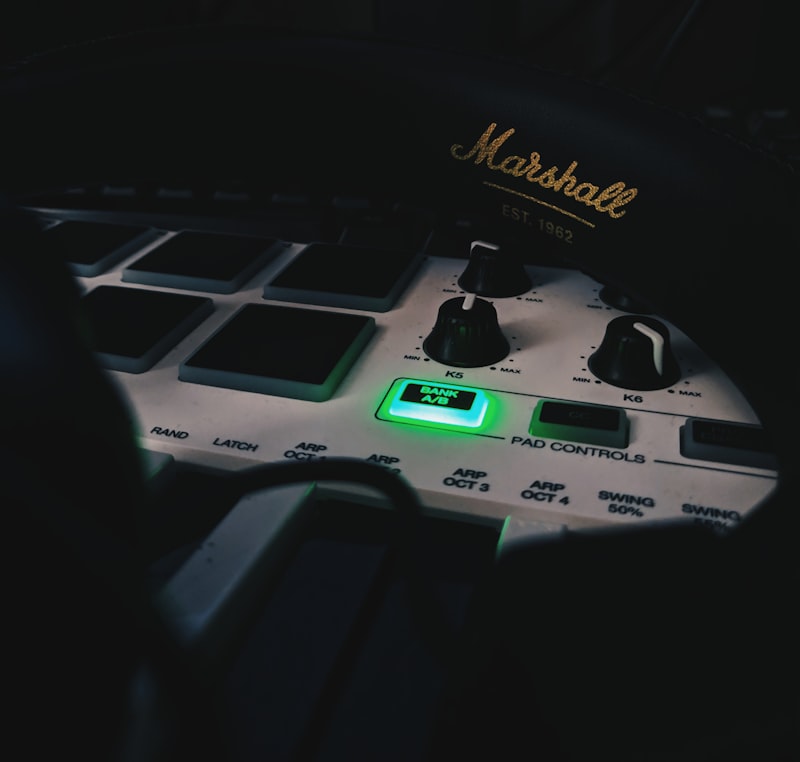
- Pads for finger-drumming beats and knobs for hands-on mixing.
If you mostly want to tap out rhythms, also look at our roundup of drum machine apps; for melodic playing, piano and keyboard apps pair beautifully with a controller.
How to choose: buying criteria
Key count and size
25 keys is ultra-portable and great for bass lines, single-handed melodies and beats. 49 keys lets you play with both hands and is more comfortable for chords and piano parts. 61 keys suits piano players but is less travel-friendly. Mini keys save space; full-size keys feel better if you have any piano background.
Connection and power
Look for USB-C and class-compliant operation so the iPad recognises it with no drivers. Bus-powered controllers run off the iPad, but a power-hungry one may need a powered USB-C hub. If your iPad and keyboard use different connectors, you will need the right adapter or cable.
Pads, knobs and faders
Drum pads make beat-making far more fun and expressive. Assignable knobs and faders let you control synth parameters and mixer levels hands-on. The more controls, the less you reach for the screen.
Bundled software relevance
Many controllers ship with desktop software you may not use on iPad — focus on the hardware itself rather than the bundle when buying for iPadOS.
Our picks
Best compact controller
A 25-key mini controller with pads and a couple of knobs is the go-anywhere choice. Akai’s compact MPK Mini family and Korg’s small controllers are the usual reference points. The Akai MPK Mini is the popular all-rounder thanks to its pads, knobs and joystick, while the Novation Launchkey Mini and Arturia MiniLab are strong alternatives, the latter known for its assignable knobs. Most connect over USB, so plan on a USB-C hub or the Apple Camera Connection Kit to hook one up to an iPad.
Best for two-handed playing
A 49-key controller hits the balance between playability and portability for chords, piano and lead lines. The Novation Launchkey 49 is a well-rounded pick with pads and DAW controls, and the IK iRig Keys series is a slim option designed with iOS in mind. Bear in mind a 49-key board needs desk space and, like the smaller controllers, a USB-C hub or Camera Connection Kit to reach an iPad.
Best for beat-makers
A pad-focused controller, or a keyboard with a strong pad section, makes finger-drumming the priority. Akai’s MPC-style pads are the benchmark here. The Akai MPK Mini doubles as a great beat-maker’s board thanks to its responsive pads, and Akai’s dedicated pad units are the natural step up if drums are your main focus. As always with an iPad, factor in a USB-C hub or Camera Connection Kit for the connection.
Best ultra-portable / pocket option
A slim, mini-key controller built to slide into a bag suits travel and tight desks. Korg’s nano-series controllers fit this brief. The Korg nanoKEY is about as flat and packable as a MIDI keyboard gets, and the Akai LPK25 is a similarly tiny 25-key alternative. Both connect over USB, so keep a USB-C hub or Camera Connection Kit in your bag to pair them with an iPad on the move.
Getting connected
Most class-compliant controllers are plug-and-play: connect over USB-C, open your app, and start playing. If yours does not show up, our step-by-step guide to connecting a MIDI keyboard to your phone covers adapters, hubs and power. For the full mobile rig, see the best accessories for mobile music production.
Which apps to play it with
GarageBand and Cubasis both respond to external MIDI controllers natively, and AUv3 synths add huge sound choices — read what AUv3 apps are to understand why that matters. The iPad is also a strong music-making platform overall, as covered in the best tablets for music production.
Frequently asked questions
Will any USB MIDI keyboard work with an iPad?
Most class-compliant USB controllers do, as long as you connect over USB-C with the correct cable. Very power-hungry controllers may need a powered hub so the iPad can supply enough power, and a few specialised models expect their own drivers — check before buying.
How many keys do I need?
25 keys is enough for beats, bass and one-handed melodies and stays portable. Choose 49 keys if you want to play chords and piano parts with both hands. Only go to 61 keys if piano playing is your main goal.
Do I need keys with pads, or can I get both?
Plenty of controllers combine keys, pads and knobs in one unit, which is the most flexible choice for a mobile setup. If you only finger-drum, a pad-only controller is lighter, but a hybrid keyboard covers melodies and beats together.
Shop related gear
Ultra-portable keys that pair with an iPad: