
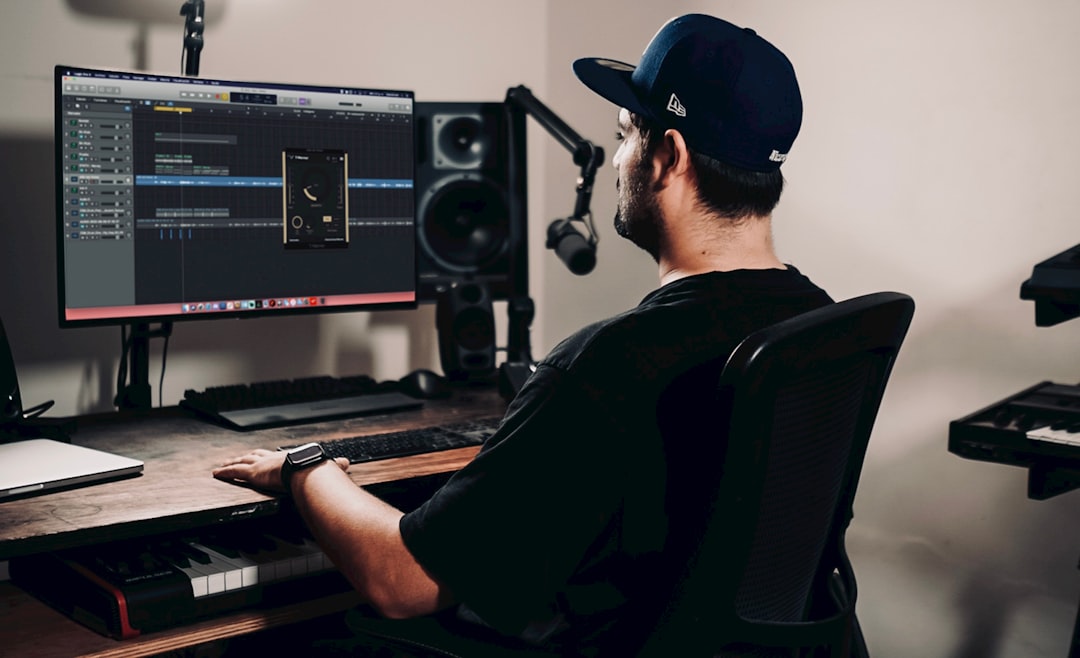
Distortion in a recording sounds like crunch, crackle, or harsh breakup on louder parts. Knowing how to fix distorted recording is mostly about catching it at the source: too much input gain clips the signal before it’s even recorded. Here’s how to set levels correctly, prevent it, and salvage what you can from a take that’s already clipped.
Understand what clipping is
Digital audio has a hard ceiling at 0 dBFS. When your input level pushes past it, the tops of the waveform get chopped flat — that squared-off shape is what you hear as distortion. Once recorded, that information is gone, which is why prevention beats repair. The fix on the way in is simply giving the signal headroom so peaks never reach the ceiling.
Analogue clipping versus digital clipping
It helps to know there are two distinct kinds of breakup, because the cure differs. Analogue clipping happens before the signal is converted — an overloaded mic capsule, a preamp pushed too hard, or a hot pedal. It tends to sound warmer and rounder, but it’s still recorded permanently into the file. Digital clipping happens at the converter when the level exceeds 0 dBFS, and it sounds harsher and more brittle because the peaks are sliced perfectly flat. Both are baked in once captured, but knowing which one you’re hearing tells you where in the chain to drop the level — at the mic and preamp for analogue, at the interface input for digital.
Set input gain with headroom
The most common cause is the interface preamp gain set too high. To fix it:
- Have the performer play or sing the loudest part while you watch the input meter.
- Set gain so the loudest peaks land comfortably below 0 — leaving several dB of headroom is sensible, not pinning the meter.
- Don’t chase a “loud” waveform; you can raise level later. Clean and quiet beats loud and clipped.
This is the heart of gain staging, and getting it right here prevents most distortion.
Use a pad for loud sources
Loud sources — a belted vocal, a snare, a guitar amp — can overload even a preamp at low gain. Engage the input pad on your interface or mic, which drops the signal level before the preamp so it doesn’t clip. On condenser mics, a built-in pad helps with high sound-pressure sources. Pair this with smart mic placement so a singer isn’t right on top of the capsule during the loudest passages.
Find where the distortion is entering
If careful gain still gives crunch, distortion can creep in elsewhere:
- Cable or connector: a fault can crackle and distort — confirm with how to test an XLR cable, and if a lead turns out to be broken you can often repair the XLR cable yourself rather than bin it.
- Wrong input type: plugging a line-level source into a mic input, or an instrument into a line input, overloads it. Match the input setting to the source.
- Plugin or monitoring: a clipping plugin on the channel, or an overdriven monitor path, can sound like recording distortion even when the file is clean. Check by soloing the raw recorded clip.
Track the problem down one stage at a time
When the source of distortion isn’t obvious, work through the signal chain in order rather than guessing. Each link can clip independently, so the goal is to find the first point where the sound is already broken:
- Listen to the raw clip in isolation. Mute every plugin and solo the recorded audio. If it’s clean here, the problem is downstream in processing or monitoring, not the recording itself.
- Check the converter input meter. If the recorded file is distorted, the level reached 0 dBFS at the interface. Pull the preamp gain down and engage a pad.
- Bypass the preamp gain. If lowering gain doesn’t help, the breakup is arriving from before the preamp — suspect the mic, an inline device, or a faulty cable.
- Swap the cable and try a different input. A quick swap rules out a damaged lead or a single bad channel on the interface. If the trouble is intermittent crackle rather than steady distortion, our guide on how to fix crackling and popping audio walks through the usual culprits.
This stage-by-stage method takes a couple of minutes and almost always pinpoints the culprit, rather than leaving you re-recording blindly and hoping it goes away.
Common mistakes that cause distortion
Most clipping problems trace back to a handful of habits. Avoiding these covers the vast majority of cases:
- Recording “hot” out of habit. Aiming for big, loud waveforms made sense in the analogue tape era, but with modern digital systems it only invites clipping. Leave headroom instead.
- Setting levels on a quiet rehearsal. Performers almost always get louder once recording starts. Always set gain to the loudest passage they’ll actually deliver, then leave a margin on top.
- Ignoring the pad because it “makes things quieter”. A pad plus a touch more preamp gain is far cleaner than a pinned input with no pad.
- Confusing monitoring distortion with a clipped file. If your headphones or monitors are turned up too far, the playback can distort while the recording is perfectly clean. Check the file before blaming the take.
- Stacking gain blindly. A mic with an active output, a hot preamp, and a loud source can add up to clipping even when no single stage looks extreme. Manage the whole chain, not one knob.
Can you fix an already-clipped take?
Honestly, the best fix is to re-record with proper gain. But if the take is irreplaceable, declipping/restoration tools can interpolate the chopped peaks and reduce the harshness — they reconstruct an approximation, not the original, so results vary with how badly it’s clipped. Mild clipping cleans up reasonably; severe clipping rarely sounds natural. Treat it as damage control, then capture a clean version when you can. For workflow context, our recording vocals at home guide covers getting clean takes the first time.
Build a habit that prevents it
The reliable cure is a quick pre-take routine: ask for the loudest passage, set gain with headroom, engage a pad if the meter still jumps, and record a short test. Spending thirty seconds on levels before each session saves re-recording later, and it keeps the whole signal path clean from input through to your monitors.
Frequently asked questions
Why does my recording distort even though the meter doesn’t look maxed?
Brief peaks can clip between meter updates, or distortion is entering before the meter you’re watching — for example an overloaded mic or a pad you haven’t engaged. Engage the input pad, leave more headroom, and check you’ve selected the correct input type for the source.
Is recording at lower levels worse for quality?
No. Modern interfaces have plenty of headroom and a low noise floor, so recording with comfortable headroom and raising the level later sounds far better than recording hot and clipping. Aim for clean peaks well under 0 dBFS.
Can distortion come from the mic itself?
Yes — a very loud source can exceed a mic’s maximum sound-pressure handling, causing the capsule to distort before the preamp ever sees it. Use the mic’s pad, move it back from the source, or choose a mic rated for higher SPL.
How much headroom should I leave when setting levels?
Leave enough that your loudest peaks sit clearly below the ceiling rather than nudging it — a comfortable margin, not a level pinned near 0 dBFS. The exact figure matters less than the principle: peaks should never touch the top. You lose nothing by recording with margin, because you can always raise the level cleanly afterwards, but you can’t undo a clipped peak.
My file is clipped but the take is perfect — what now?
First try a declipping or restoration tool, which works best on mild, occasional clipping and can take the edge off the harshness. If the clipping is heavy and constant, the reconstruction will sound artificial, so weigh whether a re-record is realistic. Either way, set your gain with headroom before the next take so the problem doesn’t repeat.
If the recording is irreplaceable and the distortion won’t clean up, professional de-clipping can often go further than DIY tools — our audio cleanup & restoration service matches you with a restoration engineer, free.



