
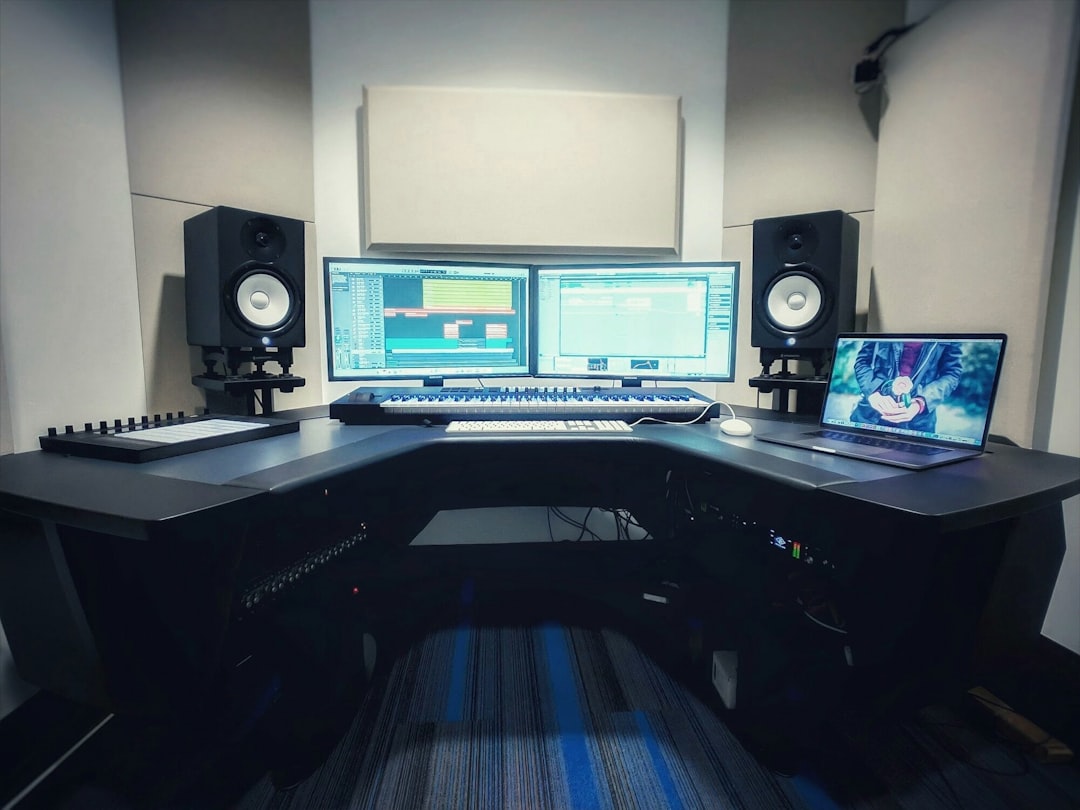
To use takes in Reaper, record over the same region more than once and Reaper stacks each pass as a take inside one item. You can show all takes as lanes, audition them, switch the active take, and split between takes to comp the best moments into a single performance.
Learning how to use takes in Reaper is what makes capturing several vocal or instrument passes painless — you keep every attempt and assemble the best version afterwards instead of nailing it in one shot.
Recording multiple takes
Set your loop/time selection over the section you want, arm the track, and record. Each time you record over that same item, Reaper adds a new take. By default the newest take is active and shown. To keep every pass visible, make sure “Show all takes in lanes” is enabled (in the Options menu, the take lanes setting) so each recording stacks into its own lane within the item.
If you are recording vocals this way, pair this with our recording vocals in Reaper guide for the tracking side.
Showing and auditioning take lanes
With take lanes shown, each take sits on its own row in the item. Click a lane to make that take the active (audible) one. You can also cycle the active take with the take navigation actions. Mute, lock or delete individual takes from the take context menu (right-click the item) so the unusable passes get out of your way.
Comping: building one great performance
Comping means stitching the best bits of each take into one final performance. In Reaper:
- Show the take lanes so you can see every pass.
- Listen through and decide which take wins for each phrase.
- Click in a take lane to set it as the active take for that section, or use the comping tools to “promote” a lane’s region.
- Split the item at phrase boundaries (S key) and set the active take per segment so the playlist follows your chosen path.
- Crossfade across the splits so the joins are inaudible.
The general approach applies in every DAW — our walkthrough on how to comp vocals in a DAW covers the editing mindset, fades and avoiding audible seams.
A practical comping workflow
It helps to work in passes rather than trying to perfect the comp on the first listen. On a first pass, simply listen through every take and rough out which lane is strongest for each section without obsessing over the exact split points. On a second pass, refine the boundaries phrase by phrase, and on a final pass, tidy the crossfades and check the joins in context with the rest of the mix.
Loop a problem phrase and solo the track while you audition lanes, so you are judging the performance itself rather than how it sits against the backing. When you swap the active take for a segment, listen to the transition into and out of it — a take that sounds great in isolation can clash at the seam because the singer’s tone or timing shifts. Splitting on a consonant or a breath, rather than mid-vowel, gives you a far more forgiving place to crossfade.
Try to keep your splits musical. Cutting at the start of a word or on a natural breath almost always sounds cleaner than cutting in the middle of a sustained note, because the ear notices a sudden change in a held tone immediately. Short crossfades of a few milliseconds usually hide a join; longer fades suit slower, sustained material. Comp for performance first, not pitch — if the strongest take has one sour note, choose it anyway and fix the pitchy notes afterwards rather than picking a weaker pass.
Common mistakes to avoid
A few habits cause most of the trouble people run into with takes in Reaper:
- Comping with lanes hidden. If you cannot see every pass, you are guessing. Always show the take lanes before you start choosing.
- Splitting mid-vowel. Cuts placed on a sustained note are hard to hide. Move the split to a consonant, breath or gap and the crossfade does the rest.
- Forgetting to crossfade. A hard cut between two takes often clicks or jumps in tone. Add a short fade across each join.
- Flattening too early. Once you flatten you lose the alternate lanes. Make sure you are happy first, or keep an unflattened copy.
- Letting sessions sprawl. Stacks of unnamed, uncoloured takes get confusing fast. Name and colour as you go.
Flattening and cleaning up
Once you are happy, “flatten” the item (in the take context menu) to render your comp down to a single take, which keeps the session light and prevents accidental take switching later. Keep an unflattened copy if you might revisit the comp. If a take-heavy session is still straining your CPU after comping, you can also freeze the track to lighten the load. Trim, crossfade and tidy the edits, then move on to processing.
From a finished comp you can head into mixing vocals, and keeping take-heavy sessions readable is much easier if you follow some basic DAW project organisation habits like colour-coding and naming.
Frequently asked questions
Why are my new recordings replacing the old take instead of stacking?
Take lanes are not being shown, so you only see the active take. Enable “show all takes in lanes” in the Options menu and confirm your record mode is set to add new takes rather than overwrite.
How do I switch between takes in Reaper?
Click the take lane you want, or use the take navigation actions to cycle the active take forward or back. The active take is the one that plays back.
What does flattening takes do?
Flattening renders your comp — the active takes across all your splits — into a single take, removing the alternate lanes. It locks in your choices and lightens the session. Keep a copy first if you might want to re-comp.
Should I comp while recording or afterwards?
Capture first, comp later. Trying to judge takes between every pass breaks the performer’s flow. Record several clean passes, keep the room moving, and do the detailed comping once you have enough material to choose from.



