
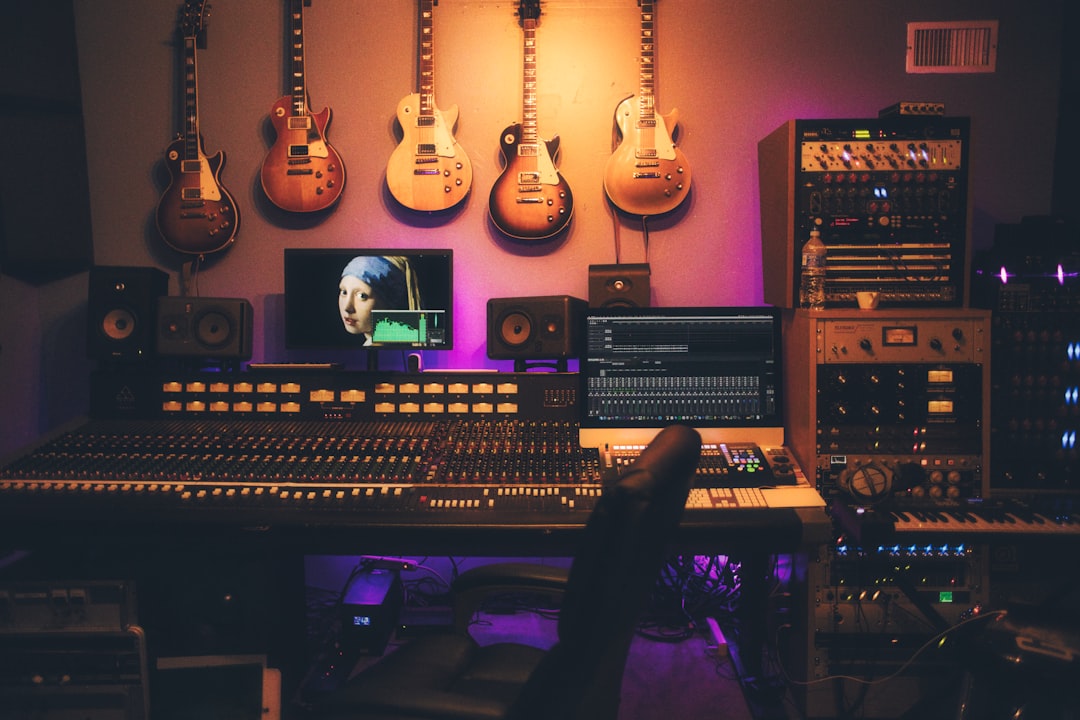
To record vocals in Reaper, set Reaper to use your audio interface, create a track, set its record input to the right mic channel, arm the track, enable input monitoring, set a safe level, and hit record. Below is the full workflow so you get a clean, usable take the first time.
This guide assumes you already have Reaper open and a microphone plugged into your interface. If you are still wiring things up, our walkthrough on how to set up an audio interface covers that side first.
Set your audio device in Reaper
Before you can record vocals in Reaper, point it at your interface. Open Preferences, go to the Audio > Device page, and select your interface as the audio device. On Windows, ASIO with your interface’s own driver gives the lowest latency; on macOS, Core Audio handles this for you. Set a small buffer size (for example 128 or 256 samples) to keep monitoring latency low while you sing. If you hear clicks or dropouts, raise the buffer slightly.
While you are on the Device page, check that the sample rate matches the rest of your session. For vocals, 44.1 kHz or 48 kHz are both fine; the important thing is that every track in the project shares the same rate, otherwise Reaper has to resample on the fly and your timing can drift. If you are tracking to a click or to existing instrumental parts, confirm those were rendered at the same rate before you start. If you have not laid down a tempo reference yet, our guide on how to make a click track in a DAW shows you how.
Create and arm a vocal track
Double-click in the empty track area (or press Ctrl/Cmd+T) to add a track and name it “Vocals”. Then:
- Click the track’s record-arm button (the round button on the track panel) so it lights red.
- Set the record input: click the input/route area on the track, choose Mono input, and pick the channel your mic is on (usually input 1).
- Set record mode to “Input (audio)” so you capture the audio, not MIDI.
Recording vocals mono is correct for a single mic — a stereo track just duplicates the same signal and wastes space.
It is worth naming the track properly before you record rather than after. Reaper uses the track name when it writes the audio file to disk, so a track called “Vocals” produces tidy, searchable files, while an unnamed track leaves you with generic names that are painful to sort through later. If you are layering more than one part — a lead and a double, say — give each its own clearly named track so your folder stays readable.
Set your input level and gain stage properly
Gain comes from your interface’s preamp knob, not from Reaper. Have the singer perform their loudest section while you watch the track meter. Aim for peaks around -12 to -6 dBFS, leaving headroom so the loudest notes never hit 0 dBFS and clip. If you are unsure why that target matters, our guide to gain staging explains it clearly.
Resist the urge to record as loud as possible. With modern interfaces there is no audio-quality benefit to pushing the signal close to the top of the meter, and a single unexpectedly loud phrase that clips is far harder to fix than a quiet take that you simply turn up afterwards. Leaving headroom also gives any compression or saturation you add later something sensible to work with.
Good mic placement matters as much as level. A pop filter a few inches in front of the mic and consistent distance from the capsule will save you cleanup later — see microphone placement for vocals for the practical detail.
Enable monitoring and record
Click the track’s monitor button so the singer can hear themselves through their headphones. If the slight delay feels off, lower your buffer size or use your interface’s direct/hardware monitoring instead and turn Reaper’s software monitoring off for that track.
When you are ready, press R (or the transport record button). Reaper records onto the armed track. Press the spacebar or stop button to end the take. Each new recording over the same region stacks as a take, and if you want to keep and audition every pass our guide on how to use takes in Reaper covers the take lanes in detail.
Before the first proper take, record a few seconds and play it straight back. This quick check confirms the right input is armed, the level is sensible, and the headphone mix is comfortable for the singer. Catching a wrong-input or no-signal problem now is far better than discovering it after a great performance has gone unrecorded.
Common mistakes when recording vocals in Reaper
A handful of issues trip people up again and again. Knowing them in advance saves a frustrating session:
- Monitoring through software and hardware at once. If you enable Reaper’s input monitoring while your interface is also passing direct sound, the singer hears a doubled, slightly delayed voice. Pick one path and mute the other.
- Recording with input plugins printing to disk. Heavy effects on the track during tracking add latency and bake decisions in. Keep the input chain light while recording and do your real processing afterwards.
- Wrong input channel. If the meter never moves, the track is almost always set to the wrong physical input. Match the track input to the jack the mic is actually plugged into.
- Forgetting to disarm. Leaving the track armed after a good take risks recording over it on the next pass. Disarm as soon as you are happy.
Tidy up after the take
Disarm the track once you are done so you do not accidentally overwrite it. Listen back, trim silence from the head and tail, and crossfade any edits. From here you can move into processing — EQ, compression and a touch of reverb — covered in our how to mix vocals walkthrough.
If you plan to record several vocal passes and assemble the best moments, read up on how to comp vocals in a DAW, and to keep monitoring smooth for the performer, see setting up a headphone mix in a DAW.
Frequently asked questions
Why can’t I hear my mic while recording in Reaper?
Most often the track’s monitor button is off, the wrong input channel is selected, or your interface’s direct monitoring is muted. Check that the track is armed, monitoring is enabled, and the input matches the physical jack your mic uses.
Should I record vocals in mono or stereo in Reaper?
Record a single vocal mic in mono. Set the track input to a mono channel matching your mic. Stereo only makes sense when you genuinely use two mics or a stereo source.
How do I reduce latency when recording vocals in Reaper?
Lower the audio buffer size in Preferences > Audio > Device, use your interface’s native ASIO or Core Audio driver, and bypass heavy plugins on the input chain while tracking. If latency persists, use the interface’s hardware monitoring.
How do I keep multiple vocal takes in Reaper?
Record each new pass over the same region and Reaper stacks it as an additional take within the item. You can then show all takes as lanes, audition each one, and split or comp the best phrases together rather than committing to a single performance.



