
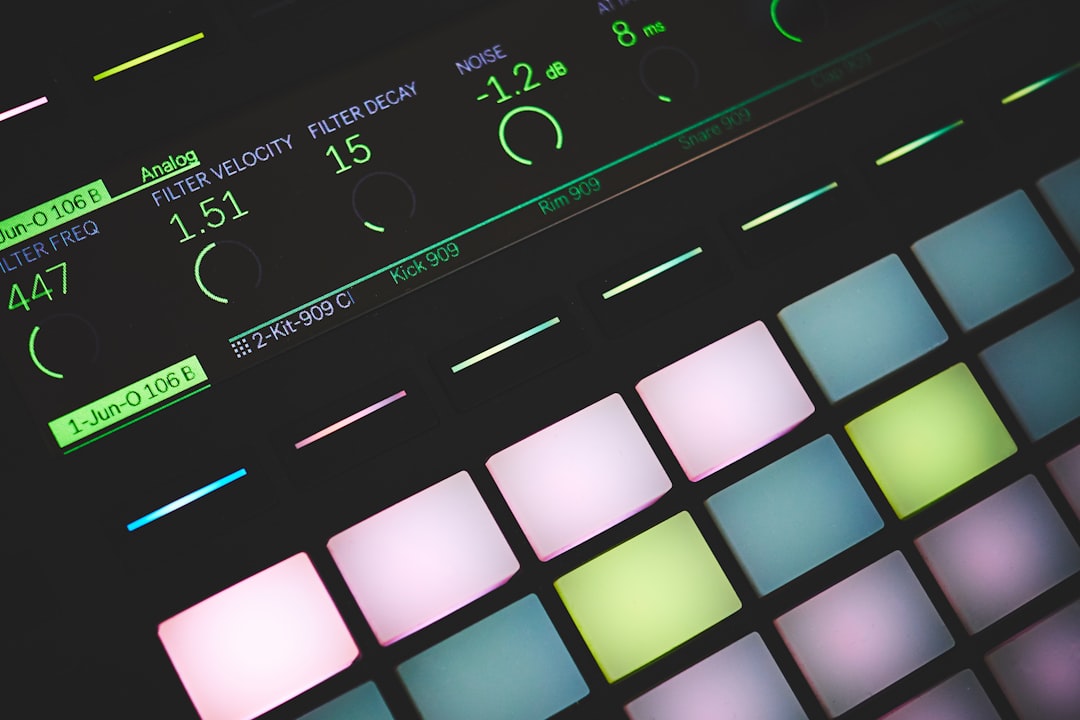
Getting a keyboard or pad controller talking to Live takes a few minutes once you know where to look. The short answer to how to set up a MIDI controller in Ableton is: plug it in, open Live’s MIDI preferences, enable Track and Remote for the device’s input, and either select a matching control surface script or MIDI-map controls by hand.
Below is the full workflow, from plugging in the cable to mapping a knob to a parameter. If you’re still getting comfortable with the basics, our explainer on what a MIDI controller actually is is worth a read first. Exact preference labels can vary slightly between Live versions, so focus on the toggles described rather than their precise position.
Step 1: Connect the controller
Most modern controllers are class-compliant USB, meaning you just connect the cable and the computer recognises them with no driver. Some larger or older units need a manufacturer driver, so install that first if the device ships with one. If you’re using a 5-pin DIN keyboard, you’ll need a MIDI interface or an interface with MIDI ports to bridge it to USB.
Step 2: Open Live’s MIDI preferences
Go to Live’s Preferences and open the Link, Tempo & MIDI section (sometimes just labelled MIDI). You’ll see a MIDI Ports list with toggles for each input and output. The key toggles are:
- Track — lets the device send note and control data to record and play instruments. Turn this on for your controller’s input.
- Sync — for clock/tempo sync, usually off for a keyboard.
- Remote — enables MIDI mapping of knobs and faders to Live’s controls. Turn this on if you want to map parameters.
A common point of confusion is the difference between the input and output rows for the same device. The input row carries data from the controller into Live, so that is the one you usually enable Track and Remote on. The output row sends data back to the controller, and it matters mainly for devices with motorised faders or LED feedback that need Live to update their lights and displays. If your unit has no screens or lit buttons, you can leave its output toggles off.
Step 3: Use a control surface script if one exists
At the top of the same preferences page is a Control Surface dropdown. If Live includes a script for your exact model, select it and set the Input and Output to your device. This gives you automatic, pre-mapped control of transport, mixer and devices, including instant mapping on supported controllers, where knobs follow whichever device is selected. If there’s no script, leave it as None and map manually.
Step 4: Test note input
Add an instrument such as a synth to a MIDI track, arm the track for recording, and play your keyboard. You should see the track meter move and hear sound. If nothing happens, recheck that the track’s MIDI input is set to your controller (or All Ins) and that Monitor is set appropriately. If the underlying note-data concepts are still fuzzy, our beginner’s guide to MIDI covers what’s actually flowing between the controller and Live.
Step 5: MIDI-map knobs and pads
For hands-on control of effects and mixer settings, enter MIDI Map Mode. Click the on-screen control you want to control, then move the physical knob or press the pad. Live stores the assignment and shows it in the mapping list. Exit Map Mode and the control is live. This is the same approach you’d use to perform with Session View clip launching from pads. Once a knob is mapped, you can also record its movements as parameter automation so the changes play back hands-free.
Once your controller is playing instruments cleanly, build playable sounds with Racks and map a controller’s knobs to their Macros for expressive, tactile control. If your setup involves an external sound source too, our guide to setting up an audio interface covers the audio side, and the mixing and mastering hub has more workflow guides.
Script versus manual mapping: which to choose
Deciding between a control surface script and hand mapping comes down to how your controller is built and how you like to work. A script is the better choice when your model is on Live’s supported list, because it wires up transport, mixer and device control in one step and keeps knobs following the selected device. That saves a lot of repetitive setup and travels with every project automatically.
Manual mapping wins when there is no script for your unit, when you want a very specific or unusual layout, or when you only need a handful of controls assigned to particular parameters. The trade-off is that manual maps are saved with the individual Live Set rather than applying everywhere, so you may need to rebuild them in new projects unless you save a template. Many people use both at once: a script for general transport and mixer duties, plus a few manual assignments on top for the parameters they reach for most.
Common mistakes to avoid
A few recurring errors account for most “it won’t work” situations:
- Enabling Remote but forgetting Track — with only Remote on, your mapped knobs respond but the keyboard won’t play notes. You usually want both on for the input.
- Mapping notes by accident — if you enter MIDI Map Mode and press a key, Live can map that key to an on-screen control, which then stops it playing the instrument. Map knobs and pads you genuinely want as controls, and leave the playing keys alone.
- Selecting the same device as both control surface and a Track input in a conflicting way — if a script already takes ownership of certain controls, mapping them again by hand can cause double or unpredictable behaviour. Check the script’s assignments first.
- Hot-plugging without re-scanning — if you connect the controller after Live is already open and it never appears, close and reopen Live so it re-scans the available MIDI ports.
Frequently asked questions
My controller is connected but Live isn’t responding. What’s wrong?
Check three things: the device shows up in the MIDI Ports list, Track (and Remote, for mapping) is enabled for its input, and the MIDI track’s input is set to your controller with monitoring on. Closing and reopening Live after connecting also forces it to re-scan.
Do I need a control surface script?
No. A script just saves you manual mapping by pre-assigning transport and device controls. Without one, you can still MIDI-map everything by hand, and note input works regardless.
Can I use more than one MIDI controller at once?
Yes. Enable Track and Remote for each device in preferences. You can assign separate control surface scripts to several controllers, for example a keyboard plus a dedicated mixer-style fader unit.
Why does my mapping disappear when I open a different project?
Manual MIDI maps are stored inside the Live Set they were made in, not globally. If you want the same assignments every time, save a Live Set with your mappings as your default template, or use a control surface script, which applies across all projects automatically.



