
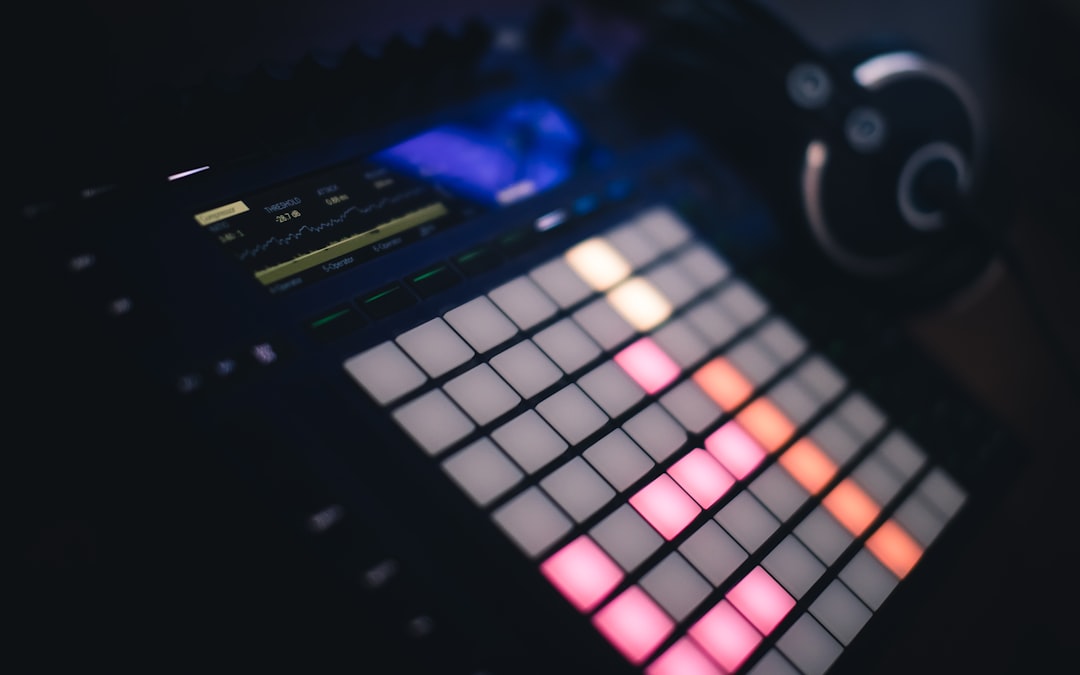
Session View is the grid-based half of Ableton Live where you trigger loops and ideas freely instead of working along a fixed timeline. If you’re wondering how to use Session View in Ableton, the essence is this: each column is a track, each row is a scene, and every cell holds a clip you can launch live and combine on the fly.
This guide explains the layout, how clip and scene launching works, and how to capture a Session jam into a finished arrangement. It applies to recent versions of Live, described generally where details vary by version.
Understanding the grid
Press Tab to switch between Session and Arrangement View. In Session View, vertical tracks run left to right and horizontal scenes run top to bottom. A filled cell is a clip slot containing audio or MIDI; an empty slot shows a stop button. Only one clip per track plays at a time, so launching a new clip in a track replaces the one currently playing.
Launching clips and scenes
Click a clip’s triangular launch button to start it. Click a scene launch button on the right to fire every clip in that row at once, which is how you switch between song sections like verse and chorus. The Global Quantisation setting (top of the screen) decides when launches actually take effect: set it to one bar and clips wait for the next bar boundary so everything stays in time.
Each clip also has Launch settings that control its behaviour: Trigger, Gate, Toggle or Repeat launch modes, plus its own follow actions to chain clips automatically. These let a single button press kick off evolving, hands-off sequences.
Setting up your tracks and scenes for a smooth jam
A little preparation makes Session View far more playable. Group your tracks logically from left to right so related parts sit together: drums, bass, harmony, then leads and vocals. That way your eye and your controller pads follow a predictable layout when you’re improvising. Colour-coding clips by section also helps; many producers give all the verse clips one colour and all the chorus clips another so a full arrangement reads at a glance.
Name your scenes after song sections (Intro, Verse, Chorus, Drop) rather than leaving them numbered. You can also embed a tempo or time signature into a scene name and Live will apply it when that scene launches, which is handy if a track changes feel partway through. Keep an empty scene or a row of stop buttons handy too, so you always have a clean way to drop parts out and create space rather than constantly stacking more clips on top.
Choosing the right Global Quantisation
Quantisation is the single setting that most changes how Session View feels to play. A one-bar value is the safe default for songwriting because every launch lands cleanly on the next downbeat, so mistimed clicks still sound musical. Drop to a half or quarter note when you want tighter, more responsive triggering during a performance, and switch to None for stutter effects, fills and beat-repeat style chopping where you want clips to fire the instant you hit them. Many performers settle on one bar for the body of a set and quickly tap a smaller value when they want to get hands-on for a fill. This launch quantisation is separate from the note quantising you apply to recorded MIDI, which tightens individual hits rather than clip timing.
Why producers build in Session View
Session View shines for sketching. You can audition different loops against each other, swap drum patterns instantly — pairing it with a Drum Rack makes building those beats fast — and find arrangements by ear before committing to a timeline. It’s also the performance environment, especially with a pad controller. If you haven’t connected one yet, see how to set up a MIDI controller in Ableton to map clip launching to physical pads.
Recording Session into Arrangement
When a jam feels right, capture it. Switch the global record on and play scenes and clips; Live records every launch and parameter move into the Arrangement timeline. Press Tab to view the result, then edit it like any linear project. This bridges spontaneous performance and detailed editing in one workflow.
Session clips work hand in hand with other Live features. Warp your loops so they lock to tempo using audio warping, build instruments with Racks, and add movement with parameter automation. For more workflow guides, see the mixing and mastering hub.
Common mistakes to avoid
The most frequent trap is launching clips at the wrong moment because Global Quantisation is set to None by accident, which leaves everything sounding loose and out of time. If your jam feels sloppy, check that value first. Another is forgetting that only one clip plays per track, then wondering why a new loop silenced the old one; if you want two parts at once they need to live on separate tracks.
Watch your clip lengths as well. Loops of different bar lengths can drift out of phase against each other, so keep related parts to matched, musical lengths (one, two or four bars) unless you deliberately want polyrhythmic movement. Finally, don’t treat Session View as a place to hoard endless half-finished ideas. Tidy unused clips and empty rows regularly, because a cluttered grid is hard to perform from and harder still to turn into a coherent arrangement later.
Frequently asked questions
What’s the difference between Session View and Arrangement View?
Session View is a non-linear grid for launching clips and scenes freely, ideal for jamming and live performance. Arrangement View is a traditional left-to-right timeline for detailed editing and final song structure. You can move material between them.
Why do my clips wait before playing?
That’s Global Quantisation. Live delays the launch until the next musical boundary so clips start in time. Set it to a smaller value, or None, if you want clips to fire the instant you click.
Can I record a live Session performance?
Yes. Enable global recording, then trigger clips and scenes as you perform. Live writes everything into the Arrangement timeline, where you can refine it afterwards.
How do I get a clip back from Arrangement into Session?
Highlight the section you want in the Arrangement timeline and use the consolidate command to merge it into a single clip, then drag that clip into an empty Session slot. This lets you bounce a finished idea back into the grid to perform or rework it.



