
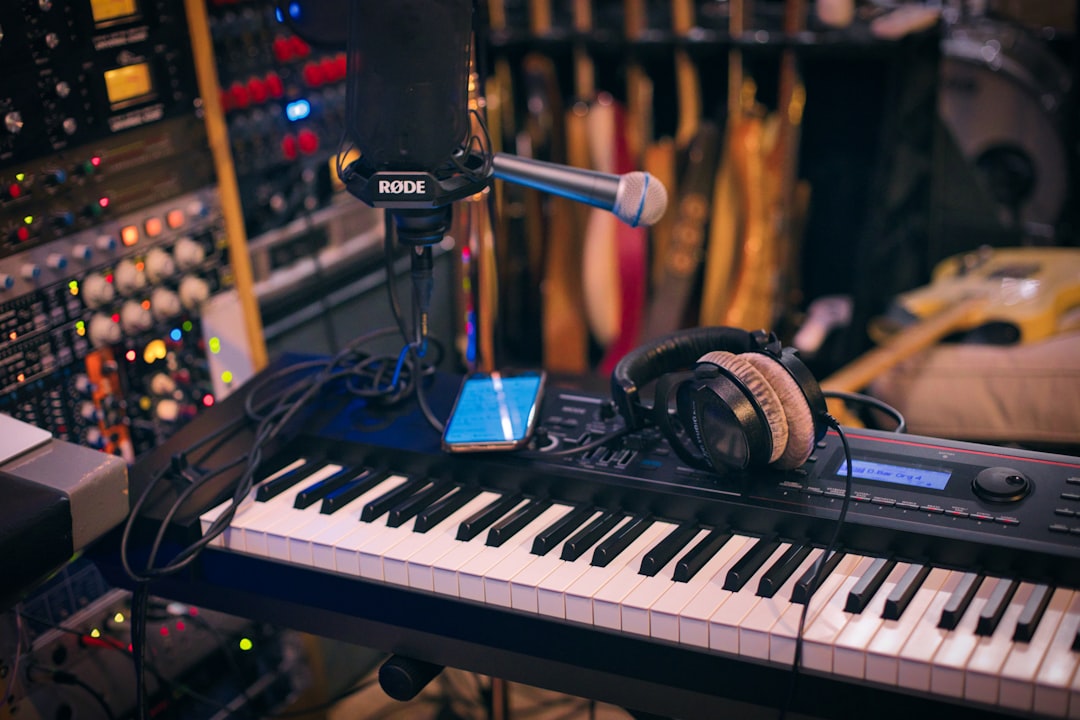
To use Elastic Audio in Pro Tools, enable it on an audio track, choose the algorithm that suits the material, then drag the clip’s edges to time-stretch or add warp markers to nudge individual hits and notes into time. Elastic Audio lets you change timing and tempo without re-recording.
This guide to how to use Elastic Audio in Pro Tools covers the practical steps: turning it on, picking the right algorithm, and editing timing in both Waveform and Warp views.
Enable Elastic Audio on a track
Each audio track has an Elastic Audio selector in its track controls. Click it and choose an algorithm to enable Elastic Audio on that track. Pro Tools then analyses the clip and lays down transient/event markers it can stretch against. You can switch between Polyphonic, Rhythmic, Monophonic, Varispeed and X-Form depending on the source.
There are two ways the analysis can run. Real-time mode keeps the processing live so you can audition algorithm changes on the fly, which is ideal while you are still deciding how to treat a clip. Rendered mode prints each change to a temporary file, costing less CPU at the expense of an instant preview. For most editing work, start in real time so you can compare algorithms, then switch to rendered once the choice is settled.
Pick the right algorithm
- Monophonic: single-note sources like a lead vocal or bassline.
- Polyphonic: general-purpose for complex material such as full mixes, guitars or keys.
- Rhythmic: percussive material with clear transients, like drum loops.
- Varispeed: changes pitch and time together, like speeding up a tape.
- X-Form: a high-quality, render-only option for final, non-real-time processing.
Choosing the matching algorithm is the single biggest factor in how natural the result sounds. The wrong one introduces flamming or smearing.
If you are unsure, let the source decide for you. Ask whether the audio is one note at a time, many notes at once, or mostly hits. A solo sax line is monophonic; a strummed acoustic with overlapping notes is polyphonic; a busy drum loop is rhythmic. When two algorithms seem plausible, audition both on the same passage and trust your ears rather than the label. Polyphonic is a safe default for anything you cannot easily categorise, and it recovers gracefully from moderate stretching.
Time-stretch a clip
With Elastic Audio enabled and the Grabber or Trim tool active, drag a clip’s edge to stretch or compress it in time. Pro Tools shows a small warp/clock indicator while you do this. This is the quick way to fit a loop to your session tempo or pull a phrase to length. For the broader concept across DAWs, see our time-stretching audio in a DAW guide. The workflow is close to how you warp audio in Ableton Live, so the same instincts carry over if you move between DAWs.
Keep an eye on how far you are pushing the material. Small adjustments, on the order of a few per cent up or down, are usually transparent. Once you start asking for large changes the artefacts that each algorithm trades on become audible: smearing of transients, a hollow or phasey quality, or a slight warble on sustained notes. If you need a big tempo change, it often sounds cleaner to make it in two smaller passes, or to re-record the part at the new tempo rather than force a single extreme stretch.
Warp view and warp markers
Switch the track’s view to Warp (from the track view selector). Now you can add warp markers by clicking on the waveform, then drag a marker to move that exact point in time while the surrounding audio stretches around it. This is how you tighten a slightly late snare hit or pull a rushed vocal syllable back onto the beat without affecting the rest of the phrase. If you have used Flex Time in Logic Pro, warp markers will feel familiar — the concept is the same.
You can also Quantize Elastic Audio events: select the clip, open the Quantize options, and conform the detected events to the grid — handy for tightening a loose drum performance. For a primer on the underlying idea, our guide to quantizing in a DAW explains how grids and strength interact.
The trick with manual warping is to anchor before you move. Drop a warp marker just before and just after the note you want to shift, so the stretch is confined to that small window and the rest of the performance stays untouched. Work in small moves and audition each one in context; a hit that looks late on the grid sometimes feels right against the groove, and over-quantising can drain the life out of a part. When you do quantise, try a strength below one hundred per cent so the performance is tightened rather than mechanically snapped.
Commit and clean up
Elastic Audio processes in real time, which uses CPU. Once you are happy, you can render the result or disable Elastic Audio to commit the edits, which frees resources. If a clip’s transient analysis is off, edit the event markers (in Analysis view) so the stretch points land on the real hits. To keep a stretch-heavy session light, our guide to freezing tracks in a DAW is useful, and tidy project organisation stops warped clips getting confusing. For the wider editing and mixing picture, the mixing and mastering hub ties it together.
Common mistakes to avoid
- Leaving everything on the wrong algorithm: applying Polyphonic to a clean vocal, or Monophonic to a full mix, is the most common cause of unnatural results. Set the algorithm per clip, not once for the whole session.
- Trusting bad transient analysis: if the event markers do not sit on the real hits, every warp and quantise built on them will be slightly off. Fix the analysis in Analysis view before you start editing timing.
- Over-quantising: snapping every event hard to the grid removes the human feel. Use quantise strength and swing to keep the groove.
- Forgetting to commit: a session full of live Elastic Audio tracks can strain the CPU during mixdown. Render or commit clips you have finished editing so the processing prints and your meters stay clear.
Frequently asked questions
Why does my audio sound warbly after using Elastic Audio?
You are probably on the wrong algorithm or stretching too far. Match the algorithm to the source (Monophonic for single notes, Rhythmic for drums), keep stretch amounts modest, and consider X-Form for a higher-quality final render.
Does Elastic Audio change pitch?
Most algorithms preserve pitch while changing time. The exception is Varispeed, which changes pitch and time together like tape speed. Choose Varispeed only when you want that linked effect.
How do I turn Elastic Audio off without losing my edits?
Render or commit the track first so the stretches print to audio, then disable Elastic Audio on the track. If you disable it without committing, you can lose the real-time warps, so commit when you are sure.
Can I use Elastic Audio on a whole multitrack drum kit?
Yes, but warp the tracks together so they stay phase-aligned. Group the kit tracks and edit them as one so a warp on the snare moves the overheads and room mics by the same amount. Warping a single mic in isolation pushes it out of phase with the rest of the kit and thins the sound.



