
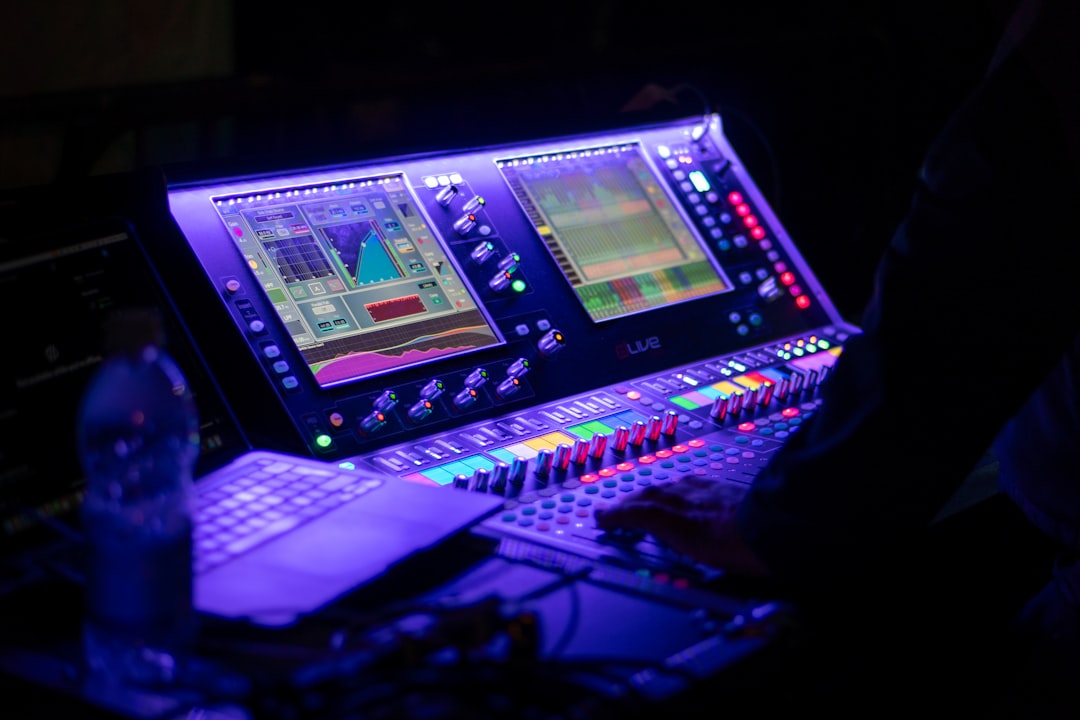
Dropouts — short gaps, clicks, or glitchy stutters in the audio — almost always mean your computer cannot keep up with the audio stream in real time. Learning how to fix audio dropouts comes down to giving the system more headroom: a bigger buffer, a stable connection, current drivers, and fewer background demands.
Here is the fastest path to clean, gap-free recordings.
Raise the buffer size first
The buffer size is how much audio your computer batches before processing it. A small buffer gives low latency but stresses the CPU; a large buffer is more forgiving and stops most dropouts. While recording, set the buffer higher (for example 256 or 512 samples) in your interface’s control panel or your DAW’s audio settings. You only need a tiny buffer for live monitoring, and most interfaces offer zero-latency direct monitoring instead. If latency is unclear, read what is audio latency.
Check the USB connection and power
Flaky USB is a leading cause of dropouts. Try this:
- Plug the interface directly into the computer, not through an unpowered hub.
- Use the cable that came with the interface, or a known-good one of the correct type.
- Avoid sharing a USB controller with other bandwidth-hungry devices like webcams or external drives.
- On laptops, disable USB power-saving so the port does not throttle the interface.
If you must expand ports, choose a quality powered hub — see the best USB hubs for audio interfaces.
Update drivers and use the right driver mode
Outdated or generic drivers cause glitches. Install the latest driver from your interface maker, and on Windows use the manufacturer’s ASIO driver rather than the generic Windows path. Our guide on how to update audio drivers walks through it, and if your interface lacks a dedicated ASIO driver, how to set up ASIO4ALL is a workable stopgap. On macOS, Core Audio handles this natively.
Free up CPU and disk
Real-time audio hates competition for resources. Reduce the load:
- Close browsers, chat apps, and anything syncing in the background.
- Set your computer’s power plan to high performance so the CPU does not downclock.
- Disable Wi-Fi and Bluetooth scanning if you do not need them during a session.
- Freeze or bounce heavy software-instrument and plugin tracks once recorded.
- Record to a fast internal SSD rather than a slow or nearly-full drive.
- Pause antivirus scans and automatic backups while you track.
These steps free up the headroom your audio engine needs, so it can keep feeding the buffer without falling behind and skipping samples. If big projects routinely max out your system, it may be worth checking how much RAM you need for music production, since memory pressure forces the same kind of glitching.
Rule out sample-rate mismatches
If your DAW, interface, and system are set to different sample rates, you can get clicks and dropouts. Make sure they all match (commonly 44.1 or 48kHz). For background on why this matters, see sample rate and bit depth explained.
Confirm the interface is set up correctly
An interface that keeps disconnecting or is selected wrong in the DAW will appear as dropouts. Double-check it is chosen as both input and output device. If you are still setting things up, our walkthrough on how to set up an audio interface covers the routing. If you also hear pops layered on top of the gaps, how to fix crackling audio tackles those specifically, and if the signal itself sounds harsh, how to fix a distorted or clipping recording is the place to start.
Work through the fixes in order
When a session is dropping out, resist the urge to change five things at once — you will not learn which one mattered. Work methodically and test after each change so you can stop as soon as the problem clears:
- Reproduce it cleanly. Note whether the dropouts happen on playback, on recording, or both, and whether they get worse as the project grows. That alone often points at CPU load versus a connection fault.
- Raise the buffer. This is the single highest-yield change, so try it first. If a large buffer alone fixes things, you have a CPU-headroom issue rather than a hardware one.
- Swap the physical link. Change the cable and the port, and remove any hub. If a direct connection cures it, the cable or hub was the culprit.
- Lighten the project. Freeze finished tracks, disable plugins you are not actively hearing, and close other apps. Watch your DAW’s CPU meter as you go.
- Reset the audio engine. Many DAWs let you stop and restart the audio device without reopening the project, which clears a stalled stream.
The aim is to isolate the cause, not just to make the noise stop once. A dropout that vanishes after you raise the buffer will return at the same point next session if the underlying load has not changed.
Common mistakes that keep dropouts coming back
A few habits quietly undo the fixes above. Watch for these:
- Tracking with a tiny buffer to chase low latency. If you are using direct monitoring from the interface, the recording buffer can be large with no audible delay — keep it there.
- Leaving everything plugged into a single hub. Drives, webcams and chargers competing on one USB controller starve the interface of bandwidth.
- Running on a battery-saver power profile. Laptops aggressively downclock the CPU to save energy, which is exactly the wrong behaviour during a take — underpowered machines struggle most, so a capable laptop built for music production pays off here.
- Stacking heavy plugins on a near-full drive. A disk with little free space slows down, and recording to it adds to the strain at the worst moment.
- Ignoring a recurring glitch at the same timecode. A click that always lands in the same spot is usually a corrupt sample or a render-once problem, not a live performance issue — freezing or re-rendering that track clears it.
Frequently asked questions
Why do dropouts only happen when my project gets big?
More tracks and plugins demand more CPU, so the system runs out of headroom and skips samples. Raise the buffer size, freeze finished tracks, and remove unused plugins to lighten the load.
Should I use a higher buffer for recording or mixing?
Use a small-to-moderate buffer while recording if you need low-latency monitoring, then increase it for mixing where latency no longer matters and CPU load is highest. Many people simply record with direct monitoring and keep the buffer high throughout.
Can a bad USB cable really cause dropouts?
Yes. A worn or low-quality cable can drop packets intermittently, producing glitches that look like a CPU problem. Swapping in a known-good cable connected directly to the computer is one of the quickest tests to try.
Why do I still get dropouts after raising the buffer?
A large buffer only helps when the cause is CPU load. If glitches persist, the problem is likely the connection, a driver, or a sample-rate mismatch — work through the physical link, drivers, and rate settings rather than pushing the buffer even higher, which only adds latency.



