
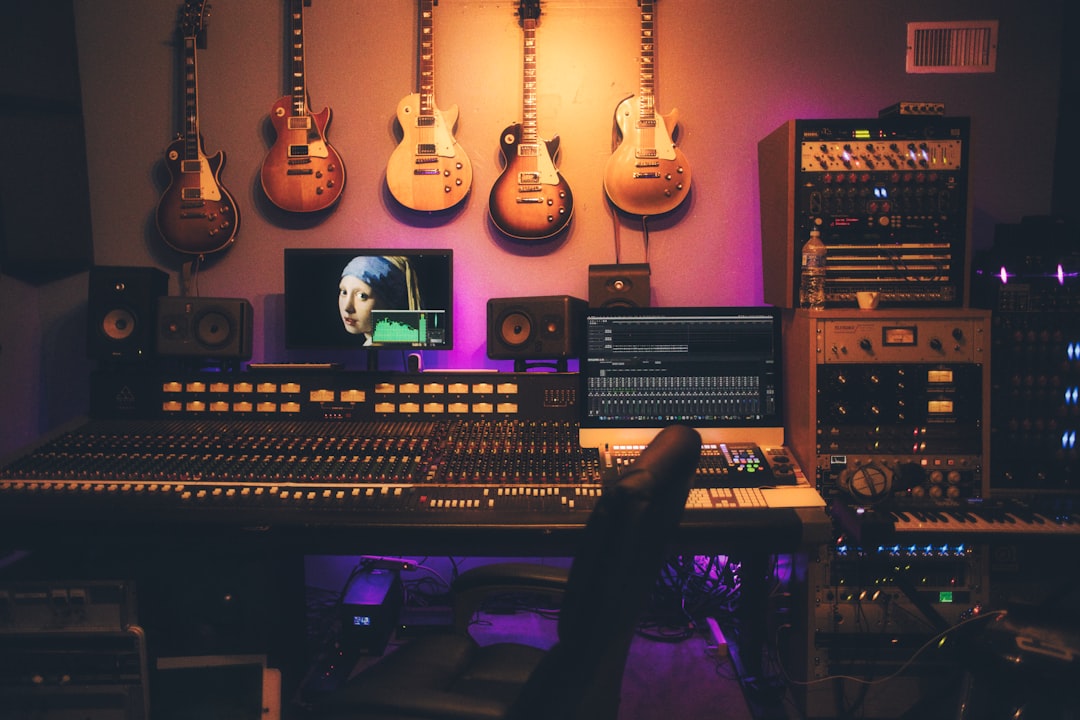
To record vocals in Pro Tools, set your playback engine to your interface, create a mono audio track, assign its input to your mic’s channel, record-enable the track, set a safe level, turn on input monitoring, and press record. Here is the complete workflow for a clean take.
This guide on how to record vocals in Pro Tools assumes your session is open and your mic is connected to your interface. If you have not opened a session yet, start with how to set up a session in Pro Tools. If your interface side needs sorting first, see how to set up an audio interface.
Set the playback engine
Open the Setup menu and choose Playback Engine. Select your audio interface as the device. Set the hardware buffer size small (for example 128 or 256 samples) while tracking so monitoring latency stays low. If you hear glitches, raise the buffer. Confirm your sample rate matches the session — our explainer on sample rate and bit depth covers sensible choices.
Create and configure an audio track
Choose Track > New, and create one Mono Audio track (mono is correct for a single mic). Then:
- Name the track “Lead Vox” so the session stays readable.
- On the track’s input selector, choose the interface input your mic is plugged into (often Input 1).
- Click the track’s record-enable button so it arms.
Set the level and monitor
Set gain on your interface preamp, not in Pro Tools. Have the singer perform their loudest part while you watch the meter, aiming for peaks around -12 to -6 dBFS so the loudest notes never clip. The gain staging guide explains why that headroom matters through the rest of your chain.
For monitoring, Pro Tools offers Input Monitoring — enable it (or have record-enable feed input) so the singer hears the mic in their headphones. If software monitoring feels laggy, lower the buffer or use your interface’s direct hardware monitoring instead. Set the performer up properly with our headphone mix guide.
Record the take
Press the transport Record button so it flashes, then press Play (or the spacebar) to start recording. Pro Tools captures audio onto the armed track. Press stop to finish. Position the mic well before you commit — a pop filter and consistent distance go a long way, as covered in microphone placement for vocals.
To capture several passes, use Playlists: each playlist holds an alternate take on the same track, which keeps them organised for comping later. The general method is in our comp vocals in a DAW guide.
Loop and punch options
- Loop Record: set a selection and loop-record to capture multiple passes into playlists automatically.
- Punch in/out: set in and out points to re-record only a flubbed phrase without touching the rest.
- Pre-roll: add a couple of bars of lead-in so the singer can get into the groove before the punch.
Prepare the session before the singer arrives
A relaxed take starts with a session that is ready to roll, so the performer never waits while you fiddle with settings. A few minutes of prep keeps the energy in the room and stops technical stumbles from breaking a good vocal mood.
- Set the tempo and click first. Get the metronome at the right tempo and a comfortable level in the headphones, building a click track the singer can lock to. A click that is too loud bleeds into the mic on quiet passages; too quiet and the singer drifts off time.
- Build a rough headphone balance. The singer needs to hear themselves clearly over the backing track. If the mix is too busy they will push and oversing. Pull instruments back until the lead sits comfortably on top.
- Record-enable and arm in advance. Have the track armed, input monitoring on, and a playlist ready so you can drop into record the instant they are ready.
- Disable input devices you are not using. Stray MIDI or extra interface inputs can cause confusion when you are picking the mic channel; keep the I/O simple.
A small amount of light processing while tracking can help a singer commit. A gentle high-pass filter to remove rumble and a touch of reverb in their headphone cue (printed dry, not to the recorded track) often makes a vocalist perform with more confidence. Keep the recorded file clean and save the heavy processing for when you mix the vocals.
Common mistakes when recording vocals in Pro Tools
Most tracking problems are not exotic — they come down to a handful of repeat offenders. Knowing them in advance saves a re-record later.
- Setting gain too hot. Recording with peaks near 0 dBFS leaves no headroom and risks clipping on the loudest line. Modern sessions have plenty of resolution, so peaking around -12 to -6 dBFS is safe and clean.
- Recording a mono mic on a stereo track. A single mic is a mono source. Putting it on a stereo track wastes space and can leave the vocal hard-panned to one side. Use a mono audio track.
- Confusing input and output monitoring. If you cannot hear the mic, the cause is usually that the track is not record-enabled or input monitoring is off, not a faulty mic.
- Forgetting the pop filter and distance. Inconsistent mic distance changes tone and level between takes, making comping harder. A pop filter also sets a consistent working distance.
- Letting latency creep in. If the singer hears a slight delay on their own voice they will fight it. Lower the buffer for tracking, or switch to hardware direct monitoring.
- Not saving and naming takes. Unnamed playlists and unsaved sessions cost you the best take. Name as you go and save often.
Frequently asked questions
Why can’t I hear my voice while recording in Pro Tools?
Check that the track is record-enabled, input monitoring is on, the input selector matches your mic’s channel, and your interface direct monitoring is not muted. One of those is almost always the cause.
Should the vocal track be mono or stereo in Pro Tools?
Mono. A single vocal mic is a mono source, so create a mono audio track and assign one input. Stereo only applies when you genuinely record two mics or a stereo source.
How do I record multiple vocal takes in Pro Tools?
Use Playlists or Loop Record. Each pass lands on a separate playlist lane on the same track, so you can audition them and comp the best phrases into one final vocal.
What buffer size should I use for recording vocals?
Use a small buffer such as 128 or 256 samples while tracking so the singer hears themselves with minimal delay. If you hear clicks or glitches, raise it a step. You can switch to a larger buffer later for mixing, when low latency no longer matters.
Should I add effects while recording the vocal?
Keep the recorded file clean. A little reverb in the singer’s headphone cue helps them perform, but record the track dry and add your real processing in the mix, where you keep full control.



