
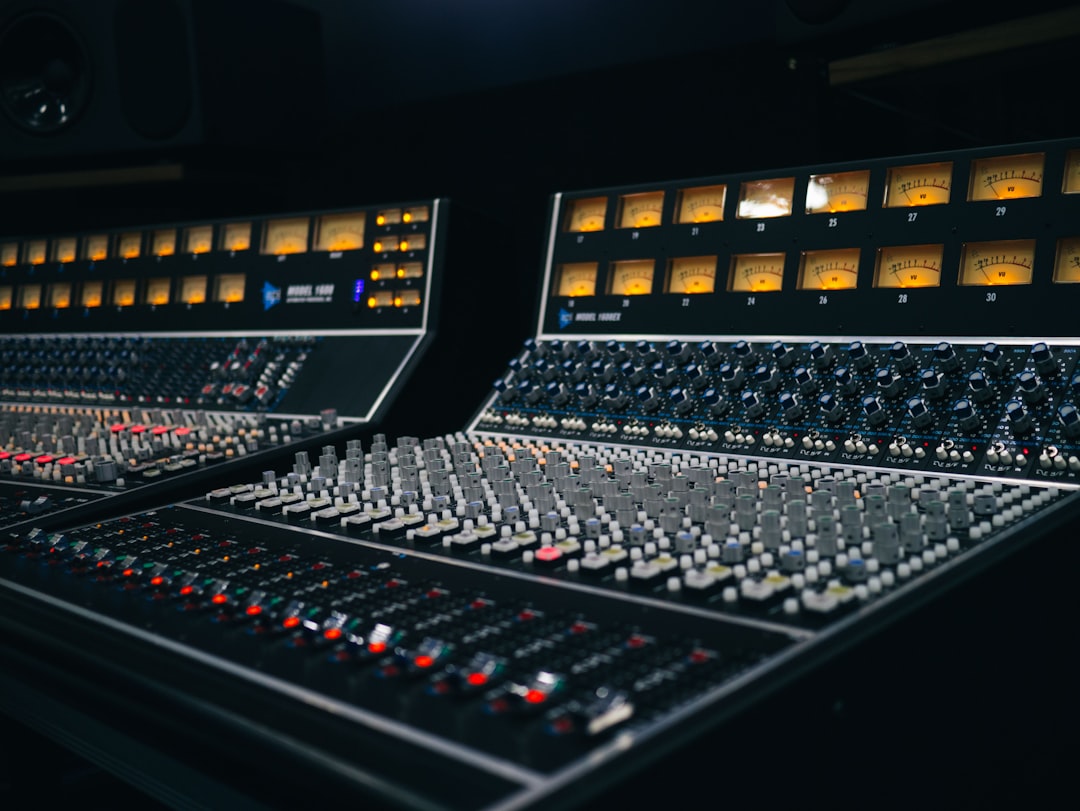
Choosing an audio interface for Mac is mostly about matching three things: the connection your Mac actually has (USB-C / Thunderbolt), the number of inputs you genuinely need, and a driver that plays nicely with macOS. The good news is that nearly every modern interface is class-compliant on Mac, so you rarely need to install anything to get sound in and out.
Below is a buyer’s guide built around how a home recordist actually shops: figure out your I/O count, your connection, and your budget, then narrow it down. The editor’s picks for each category sit at the end of each section.
Quick answer: how to choose an audio interface for Mac
- Connection: Most Macs since 2016 use USB-C / Thunderbolt. Any USB-C class-compliant interface works; Thunderbolt models add lower round-trip latency for heavy monitoring.
- Inputs: Solo vocalist or podcaster? 1–2 inputs. Band, drums, or multi-mic setups? 4–8+.
- Preamps: You want clean, quiet preamps with enough gain for dynamic and ribbon mics.
- Phantom power: Needed for condenser mics — confirm 48V is on board.
- Bus power vs mains: Smaller interfaces run off the cable; larger ones need a power adapter.
Why a Mac makes interface choice easier
macOS ships with Core Audio, a mature, low-latency audio layer that almost every interface speaks natively. In practice this means most class-compliant USB interfaces are plug-and-play: connect the cable, pick the device in your DAW, and record. You don’t fight with ASIO drivers the way Windows users sometimes do.
That said, “works without drivers” and “works best” aren’t always the same. Manufacturer software still matters for two reasons: a dedicated control panel for routing and buffer settings, and tighter, more stable performance under load. If your workflow involves many tracks or live monitoring through plugins, check that the brand actively maintains a Mac control app and supports current macOS versions, including Apple Silicon.
USB-C vs Thunderbolt on Mac
This trips up a lot of buyers because the ports look identical. A USB-C port can carry USB or Thunderbolt; the interface decides which it uses.
- USB (over USB-C or USB-A with an adapter): The right choice for the vast majority of home setups. Plenty of bandwidth for 2–18 channels and perfectly usable latency for tracking vocals, guitars and podcasts.
- Thunderbolt: Lower, more consistent round-trip latency and higher channel counts. Worth it if you monitor through CPU-heavy plugins in real time or run large sessions, but it costs more.
If your interface is USB-A and your Mac only has USB-C, a simple USB-A-to-C cable or hub adapter works fine — you don’t need a powered dock for a single interface. To understand the latency side of this decision, read our explainer on what audio latency is and how to reduce it.
How many inputs do you actually need?
Buy for the recording you do most, not the one you might do once a year.
- 1 input: Solo vocals, voiceover, a single instrument.
- 2 inputs: The sweet spot for most home studios — vocal plus guitar, an interview with two mics, or a stereo source.
- 4 inputs: Small bands, a couple of vocalists, or simple drum miking.
- 8+ inputs: Full drum kits and live-band tracking. Look for ADAT expansion if you want to add eight more channels later via a separate preamp.
If you’re torn between a USB mic and a proper interface, our comparison of a USB mic versus an audio interface walks through when each makes sense.
Preamps, conversion and the specs that matter
Two specs separate a good interface from a frustrating one:
- Preamp gain and noise: Quiet preamps with around 55–60 dB of gain comfortably drive low-output dynamic and ribbon mics without hiss. If you record quiet sources or use a low-sensitivity dynamic, gain headroom matters more than headline specs.
- Converters and sample rate: Modern converters are excellent across the board. 24-bit at 48 kHz is plenty for most music and spoken-word work. If you’re unsure what those numbers mean, see sample rate and bit depth explained.
Also confirm the interface supplies 48V phantom power if you plan to use condenser mics, and check for at least one instrument (Hi-Z) input if you’ll plug in guitar or bass directly.
Software, drivers and macOS support
Before you buy, verify the manufacturer lists support for your macOS version and chip (Apple Silicon vs Intel). A few quick checks:
- Native Apple Silicon support, not just Rosetta emulation, for best stability.
- A Mac control/mixer app for routing, direct monitoring and buffer control.
- Bundled DAW or plugins, which can be a genuine value-add if you’re starting out.
Once your interface arrives, our step-by-step on how to set up an audio interface covers drivers, buffer size and getting your first signal recorded cleanly.
Direct monitoring and latency
Even with Core Audio, recording while listening to plugin processing adds delay. Most interfaces solve this with hardware direct monitoring, routing your input straight to the outputs with effectively zero latency so you can sing or play in time. If you want to monitor through reverb or amp sims in real time, that’s where a Thunderbolt interface and a low buffer size earn their keep.
Wondering whether you even need an interface versus a small mixer? Our piece on the audio interface vs mixer question clears that up.
Compared at a glance
| Pick | Why it stands out |
|---|---|
| Focusrite Scarlett 2i2 | The Scarlett 2i2 is a class-compliant USB-C interface that works with macOS Core Audio out of the box, no driver… |
| Behringer UMC22 | The UMC22 is a bare-bones single-mic, single-instrument USB interface that is genuinely cheap yet still offers a… |
| Focusrite Scarlett 18i20 | The Scarlett 18i20 is a rackmount interface with eight onboard preamps plus ADAT expansion, so you can grow toward… |
| Universal Audio Apollo Twin X | The Apollo Twin X is a Thunderbolt desktop interface prized for its very low round-trip latency and onboard UAD DSP,… |
Full picks and details below.
Our picks for the best audio interface for Mac
Best overall for most Mac home studios
A 2-in/2-out USB-C interface with clean preamps, 48V phantom power and rock-solid Mac support — the default recommendation for vocals, podcasts and single-instrument tracking.
Focusrite Scarlett 2i2
The Scarlett 2i2 is a class-compliant USB-C interface that works with macOS Core Audio out of the box, no driver wrangling required. Two clean preamps with 48V phantom power, a pair of instrument inputs and dependable Apple Silicon support make it the easy default for vocals, podcasts and single-instrument tracking. It’s the interface most Mac home recordists are pointed toward first, and for good reason.
Best budget pick
An affordable single- or dual-input interface that still delivers quiet preamps and plug-and-play Core Audio operation for first-time recordists.
Behringer UMC22
The UMC22 is a bare-bones single-mic, single-instrument USB interface that is genuinely cheap yet still offers a Midas-designed preamp and 48V phantom power. It’s class-compliant on macOS, so it works the moment you plug it in. A sensible pick for a first-time Mac recordist who wants to get one source into a DAW without spending much, then upgrade later.
Best for multi-input recording
A 4-input (or 8-input) interface for small bands and multi-mic sessions, ideally with ADAT expansion to grow later.
Focusrite Scarlett 18i20
The Scarlett 18i20 is a rackmount interface with eight onboard preamps plus ADAT expansion, so you can grow toward larger multi-mic and drum sessions without replacing it. It keeps the same Core Audio friendliness and clean Scarlett preamps in a much bigger I/O package. A popular choice for Mac users tracking small bands who need many channels at once.
Best Thunderbolt interface
A Thunderbolt model for users running large sessions or monitoring through plugins, where the lowest possible round-trip latency is the priority.
Universal Audio Apollo Twin X
The Apollo Twin X is a Thunderbolt desktop interface prized for its very low round-trip latency and onboard UAD DSP, which lets you monitor through high-end emulations in real time. Its preamps and converters are a step above typical USB boxes, suiting Mac users who run large, plugin-heavy sessions. It’s the go-to when the lowest latency and best monitoring quality justify the higher price.
Putting your studio together
The interface is the hub, but it’s one part of a working setup. If you’re building from scratch, our guide to building a home studio on a budget shows where the interface fits alongside a mic, headphones and monitoring. You can also browse more interface guides on the audio interfaces hub.
Frequently asked questions
Do I need drivers to use an audio interface on a Mac?
Usually not. Most modern interfaces are class-compliant and work immediately with macOS Core Audio — plug in the USB-C cable and select the device in your DAW. Installing the manufacturer’s control app is still worthwhile for routing, direct monitoring and buffer settings, and to confirm support for your macOS version.
Will a USB-A interface work with a USB-C MacBook?
Yes. A simple USB-A-to-USB-C cable or adapter connects the interface to a USB-C port with no performance penalty for a single device. You don’t need a powered dock unless you’re connecting several peripherals at once.
Is Thunderbolt worth it over USB for a Mac home studio?
For most home recordists, no. USB interfaces offer plenty of channels and low enough latency for tracking vocals, guitars and podcasts. Thunderbolt is worth the extra cost mainly if you run large sessions or monitor through CPU-heavy plugins in real time and need the lowest possible round-trip latency.



